Map columns
Portaim reads your headers and values, builds each Shopify field from one or more columns, groups variant rows into products, and remembers the mapping for the next file with the same layout.
The mapping editor
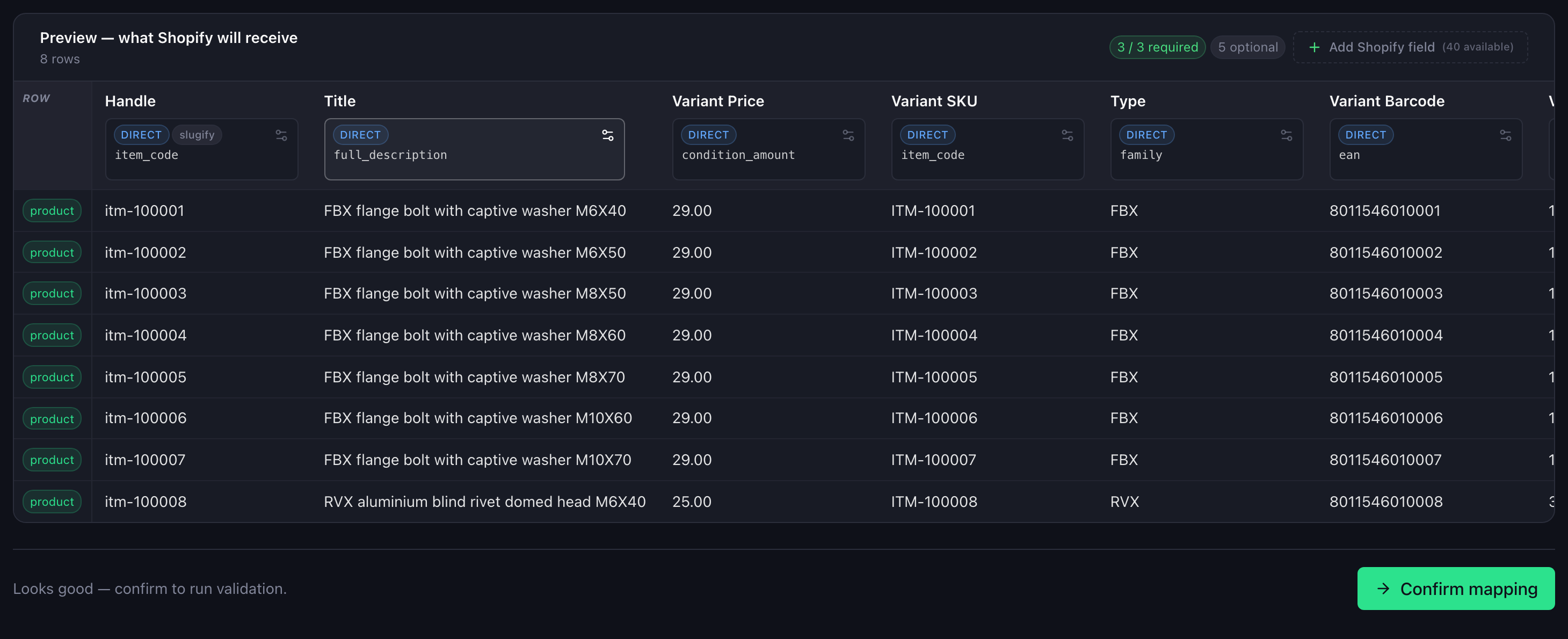
Mapping starts in the background as soon as the file is read. You land on the editor with one column per Shopify field, each showing a live preview of what it produces on your first rows. Portaim reads the column headers and the values, so a column called Descrizione that holds product codes is mapped by what it holds.
- Click a column’s header to change its source column or the rule that builds it.
- Source columns shows which of your columns are used and which are not. Click an unmapped column to map it or skip it.
- + Add Shopify field adds a field your file does not have, as a fixed value or as something the Fix step’s AI can fill later.
- When everything looks right, click Confirm mapping.
The preview shows your first rows as examples, but the checks behind the editor read every row of the file. After each change the page shows Checking your columns… for a moment, and Confirm mapping waits for it.
If the model cannot place your columns at all, you get a notice with a one-click Try AI mapping again, and you can always map by hand.
Variants
If your file lists the same product on several rows, one per size or colour, Portaim groups the rows into one product with variants. The grouping key is whatever repeats across those rows: a style or parent code, a product name, or Shopify’s own Handle column. Rows that share a code but carry different product names stay separate products: a code repeated by mistake does not merge them. You do not lay this out by hand. The option names come from the column headers (a Color column becomes the Color option) and the option values from the cells. The guide Import Shopify product variants from a supplier file shows the variant cases in detail.
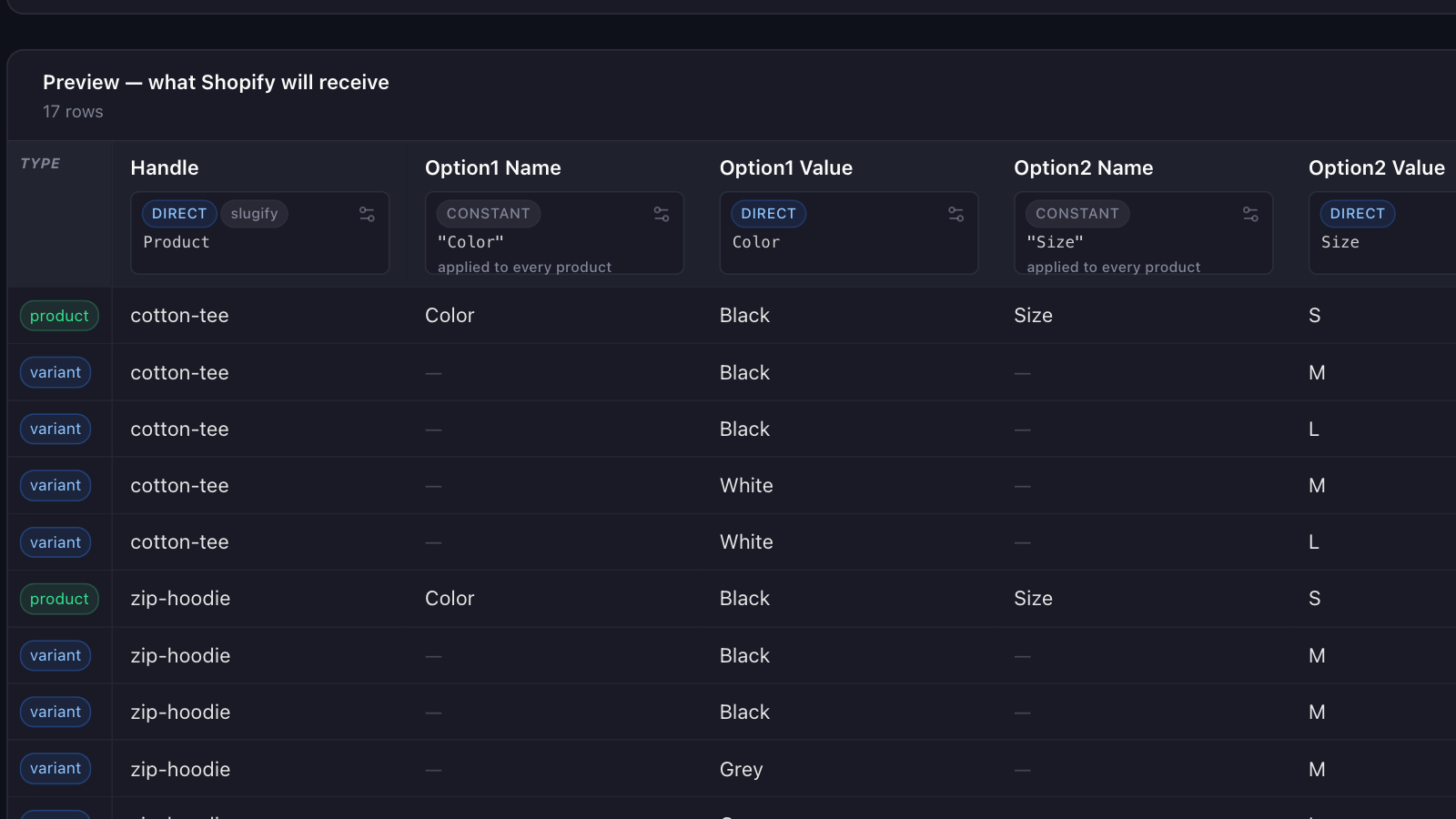
A column with one value per product is treated as product data, not as an option. See Product attributes below.
How a field is built
A Shopify row is really a product, a variant and an image, and supplier files rarely line up with that one to one. Common rules, usually picked automatically:
| Rule | What it does | Example |
|---|---|---|
| Direct copy | One column’s value goes into the field unchanged. | Price → Variant Price |
| Combine | Several columns are joined into one field with a separator. | Apparel, Jewelry, Rings → Apparel > Jewelry > Rings |
| Split | One column that packs several values is split into separate fields, which become separate options. | Red / Small → Color Red, Size Small |
| One row each | Several image columns become one image row per URL, so Shopify gets a gallery instead of one image. | Image1, Image2, Image3 → three image rows |
| Pick one | The same kind of value lives in several columns and Portaim picks one, for instance the first that has a value. | Stock NYC (empty), Stock LA (5) → Inventory 5 |
| Fixed value | A field your file does not have is set to one value for every product. | Status → active |
| Skip | The column is left out of the import. | Internal Notes |
A file that lists a product’s images on rows of their own (the product’s details on its first row, then one more image per row under the same product code) gives the same gallery: those rows become images of the product, not extra variants. With a single image column and a different photo on each variant’s row, each photo joins the gallery and also becomes that variant’s image.
A rule can also tidy each value on the way through: trim spaces, lowercase or uppercase, slugify for handles (Cool Shirt → cool-shirt), or a value map that translates your values into Shopify’s (enabled → active). The guides on combined variant columns and image galleries show Split and One row each on real supplier files.
Supplier price lists sometimes quote a price for several pieces rather than for one. When a column beside the price looks like the number of pieces each price covers, the mapping editor says so and offers two buttons: Divide Variant Price by that column, or Keep the price as it is. It shows what dividing would do to one of your own rows, and Variant Price keeps your file’s value until you choose, so a price is never divided behind your back.
The full list of fields, with what each accepts, is in Shopify fields.
Product categories
Supplier category text almost never matches Shopify’s product taxonomy word for word. Portaim finds the closest entry in Shopify’s Standard Product Taxonomy and suggests alternatives in the Fix step, so products land in a real Shopify category rather than a tag. Matching runs in your file’s language: a German category path is compared with the German edition of the taxonomy, and the category it finds is the same entry in every language.
On a direct export the category also adapts to the taxonomy version your store runs. If the store does not have a specific sub-category yet, Portaim uses the nearest one it does have rather than dropping the category. The guide Map supplier categories to Shopify’s product taxonomy covers the matching and the review step.
Product attributes
A column such as Color, Material, Pattern or Size that has one value per product can map to a product attribute (shown as Attribute: Color) instead of an option or a tag, and so can a column for any other attribute in Shopify’s taxonomy that has a fixed list of values, such as age group, shape or clarity grade. A column whose value changes between a product’s variants stays an option.
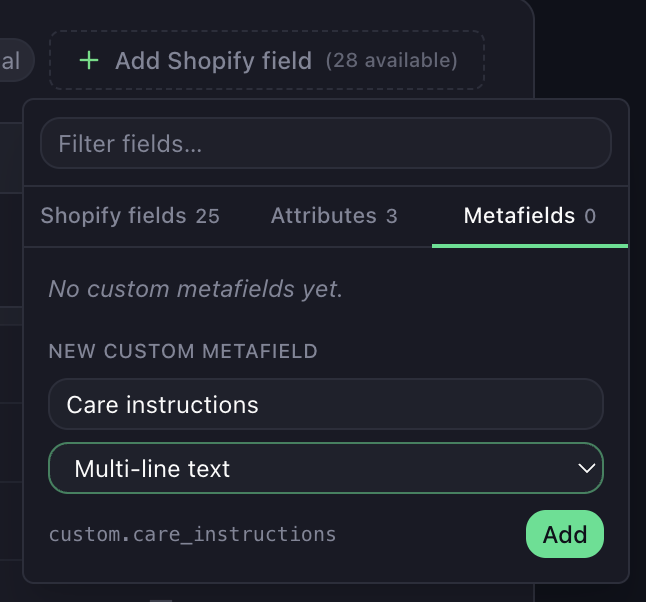
The Attributes tab under + Add Shopify field lists the attributes of your file’s categories. When the product’s category carries that attribute in Shopify’s taxonomy, the value is written to Shopify’s standard attribute for that category. Otherwise it is saved as a custom metafield such as custom.color. Any other per-product column can be saved as a custom metafield too: choose New custom metafield on the Metafields tab, name it and pick its type. A weight, volume or dimension metafield holds one number and a unit per product, such as 250 g, 500 ml or 25 cm; a number alone takes the unit its column’s header names, as in Net weight (kg). When your file keeps the unit in a column of its own, pick that column under unit from in the metafield’s editor, and the value reads as one, such as 8 oz. Portaim does this on its own for a number column with a unit column beside it, such as 250 next to ml, unless the number changes between a product’s variants, where it becomes a variant option. The Fix step warns about a value Shopify cannot store, such as a number with no unit anywhere, and the export leaves that value out. The guide Import product attributes into Shopify metafields covers it end to end.
Saved mappings
Every confirmed mapping is saved for the file’s header layout. The next upload with the same headers is mapped the same way automatically, including your corrections, and the mapping page says so. Change anything and confirm again to update the saved mapping.
Good to know
- Mapping never edits your data. Formatting problems in the values (currency symbols in prices,
yeswhere Shopify wantstrue) are handled in the next step, not here. - A column mapped to a field with a fixed list of values, such as Status or Weight Unit, gets its values checked against that list in the Fix step, with the translation offered there.
- A required field mapped to a column that is empty in every row blocks Confirm mapping. Pick another column, or click Leave it empty — fill in the Fix step and fill the field there.
- Metafield columns from another Shopify store (
Color (product.metafields.custom.color)) are not mapped to option slots.
What to do next
Click Confirm mapping. Portaim validates every row and opens Fix issues.
Related
- Shopify fields
- Import Shopify Product Variants from a Supplier File Supplier Color and Size columns become Shopify variants: rows grouped by handle, option names filled in, duplicate and missing options caught before export.
- Split Combined Variant Columns into Shopify Options Supplier files often cram variants into one column like "Red / Large". Here's how Portaim splits it into real Shopify Option1 / Option2 values.
- Map Supplier Categories to Shopify's Product Taxonomy Supplier category labels and paths are matched to Shopify's product taxonomy and land as real Product Category values, not tags, with one review per value.
- Import Product Attributes into Shopify Metafields Supplier Color, Material and Pattern columns land in Shopify's category metafields, checked against Shopify's values, or in custom metafields when none fit.