Export
Export as a Shopify-ready CSV or straight into your connected store, create new products or update existing ones by handle, and import everything as Draft to review it in Shopify first.
Before you export
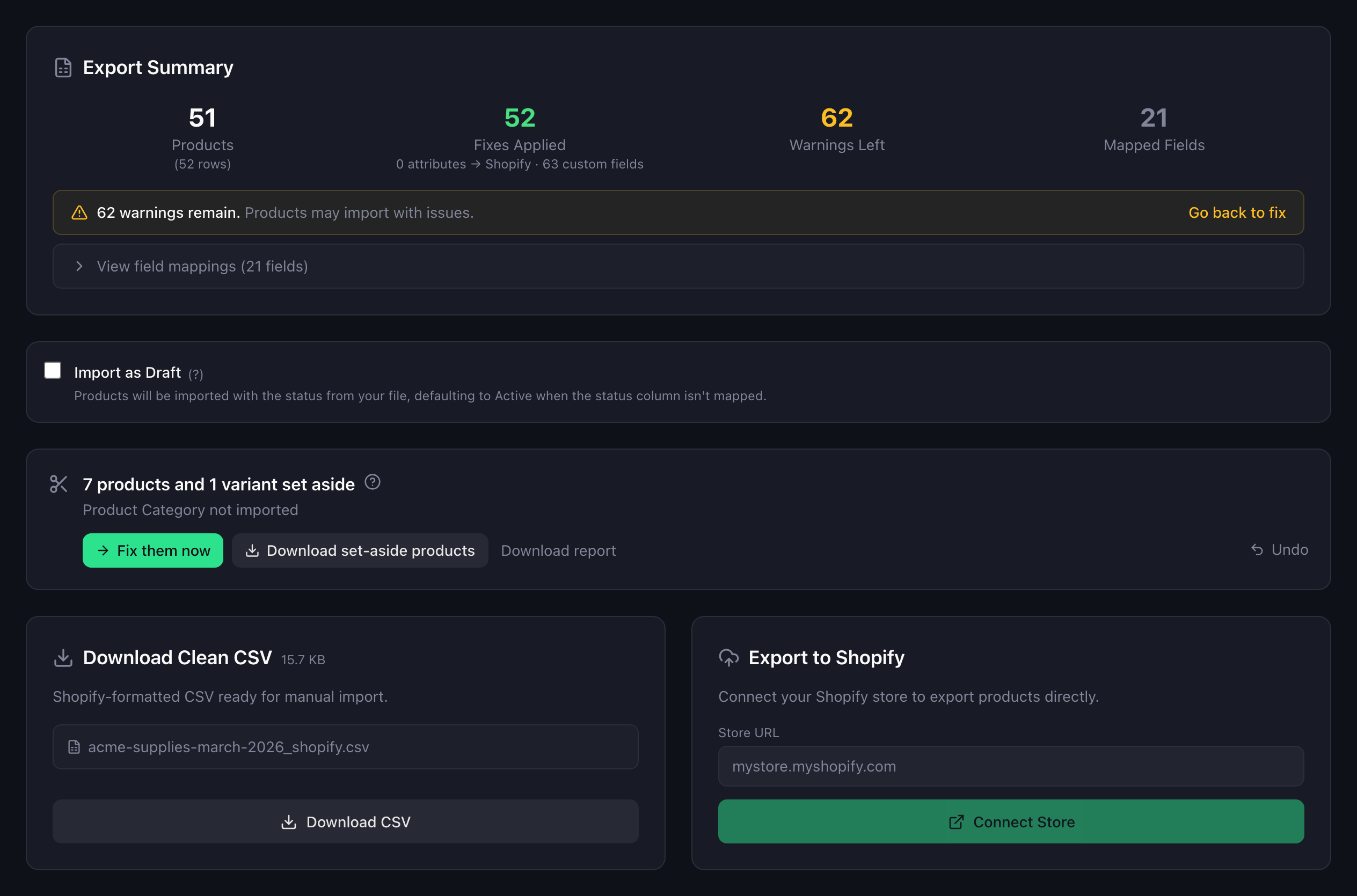
The Export step opens with a summary: how many products and variants the file produces, which fixes were applied, and which warnings remain. Until you click one of the two buttons below, nothing has been sent anywhere. Everything up to this point was a dry run, which is also why you can go back to any earlier step and change it.
Download CSV
Download CSV writes a file in Shopify’s own column layout, ready for Products, then Import, in your Shopify admin. The page shows the estimated file size against Shopify’s 15 MB import limit and lets you rename the file.
Shopify’s importer decides what happens with the file from there: existing products with the same handle are overwritten when you tick Overwrite products with matching handles in Shopify’s import dialog, and that dialog also lets you choose whether the new products are published to all sales channels or only to your online store. Shopify’s own documentation covers the rest: Importing products with a CSV file.
Export to Shopify
Export to Shopify writes the products into your connected store through Shopify’s API. If no store is connected yet, the page asks for your .myshopify.com domain and sends you to Shopify to approve the connection.
Choose how existing products are handled:
- Create new products. Every product in the file is created. A handle that already exists in the store is reported as an error for that product and skipped.
- Smart upsert (by Handle). Products are matched to the store by handle. Matches are updated with the file’s values; the rest are created.
The export runs in the background in batches and respects Shopify’s rate limits, so you can leave the page. Progress and the result appear on the page and in the dashboard’s Shopify Exports tab. Cancel stops after the current batch; products already sent stay in your store, and re-running sends the rest.
Import as Draft
Switch on Import as Draft and every product is created with the status draft, on both paths, whatever your file says. You review them in Shopify and activate them when ready. Turn it off and the file’s own status values are used, defaulting to active when no status column is mapped.
What ends up in Shopify
- Products, variants, options, images and inventory as mapped and fixed.
- Product category from Shopify’s taxonomy, adapted to the taxonomy version your store runs.
- Product attributes and metafields. The direct export turns on the attribute definitions your store does not use yet, creates the attribute entries it is missing, and writes custom metafields with their definitions. Writing standard attributes needs Shopify’s metaobject permissions: if your store has not approved them, Settings and the Export step show Permissions update, and until then every attribute is exported as a custom metafield. The CSV carries one column per attribute and metafield in Shopify’s header format.
- Sales channels: none. Products created through the API are in your Shopify admin but not on your Online Store yet. When you are ready, select them in Shopify’s Products list and add the Online Store sales channel. The export page reminds you of this after a successful run.
Caution “Smart upsert (by Handle)” overwrites the matched products’ mapped fields with the file’s values. A single-value field the file does not map is left as it is, but lists are replaced: a variant or an image the file does not carry is removed from the product.
After the export
The result page gives the counts — total, exported, failed — and lists the failures grouped by Shopify’s message, with the handles each message affected. Each message is explained in Export errors. An export that stopped with some failures is marked Partially Exported; fix the listed products and run the export again in update mode.
Products set aside in the Fix step, by Skip what’s broken or by you, are listed here too: download them or the report, or open them as a new import with Fix them now. After a skip, Undo brings its products back and returns you to the Fix step.
An email with the result is sent when the export finishes, if you have that notification switched on in Account and settings.
What to do next
- Ask Sidekick what the export changed: Sidekick.
- The next file from the same supplier: upload it, the saved mapping applies, and export in update mode to refresh prices and stock on the products you created today.