Map Supplier Categories to Shopify's Product Taxonomy
Supplier category labels and paths are matched to Shopify's product taxonomy and land as real Product Category values, not tags, with one review per value.
Free plan available · No credit card required · Shopify connection optional
The problem with supplier category data
Shopify classifies products with its Standard Product Taxonomy, a fixed tree of categories shared by every store. In a product CSV import, the Product Category column takes one of those entries and nothing else. A product can have only one, and a value Shopify does not recognise is not a category.
Supplier files carry category data in every shape except that one:
| Supplier column | Example value | Why it is a problem |
|---|---|---|
| Category path | Home > Lighting > Table Lamps | Looks like a taxonomy path but is not one; Shopify’s entry is Home & Garden > Lighting > Lamps > Table Lamps |
| Category | Table Lamps | A leaf name with no path; a supplier label rarely matches an entry word for word |
| Category 1 / Category 2 / Category 3 | Home / Lighting / Lamps | One level per column; Shopify wants the whole path in one cell |
| Department | Lighting & Bulbs | Store-specific naming that has to be resolved to a shared taxonomy entry |
| Group code | LGT-04 | A supplier code means nothing to Shopify’s taxonomy |
| Type | Lamp | Product type is free text; it is a different Shopify field, not the category |
Getting categories right by hand means:
- searching Shopify’s taxonomy for the closest entry to each supplier label, one label at a time;
- rewriting every path in Shopify’s exact spelling, down to the ampersands;
- joining level columns into one path, or trimming a path that goes one level deeper than the taxonomy does;
- keeping
Product Categoryapart fromTypeandTags; - doing it again when the next catalog arrives.
The usual shortcut is to give up and import the category column as tags. The products then have no category at all, and the tree is flattened into keyword noise.
How Portaim helps
1. Upload your supplier file
Upload a CSV, XLSX or XLS file, or paste a Google Drive, Google Sheets, Dropbox or plain file link. For a workbook with several sheets you pick the sheet and the header row, so Portaim knows where the product data starts.
2. Map the category column to Product Category
Portaim suggests a mapping from each supplier column to the Shopify product CSV fields. A category column goes to Product Category. A column whose values are paths written with > is recognised as category data by its values, not only by its header, and is kept out of Tags, Type and the variant option fields. The whole path is kept as the value; nothing is trimmed at this stage.
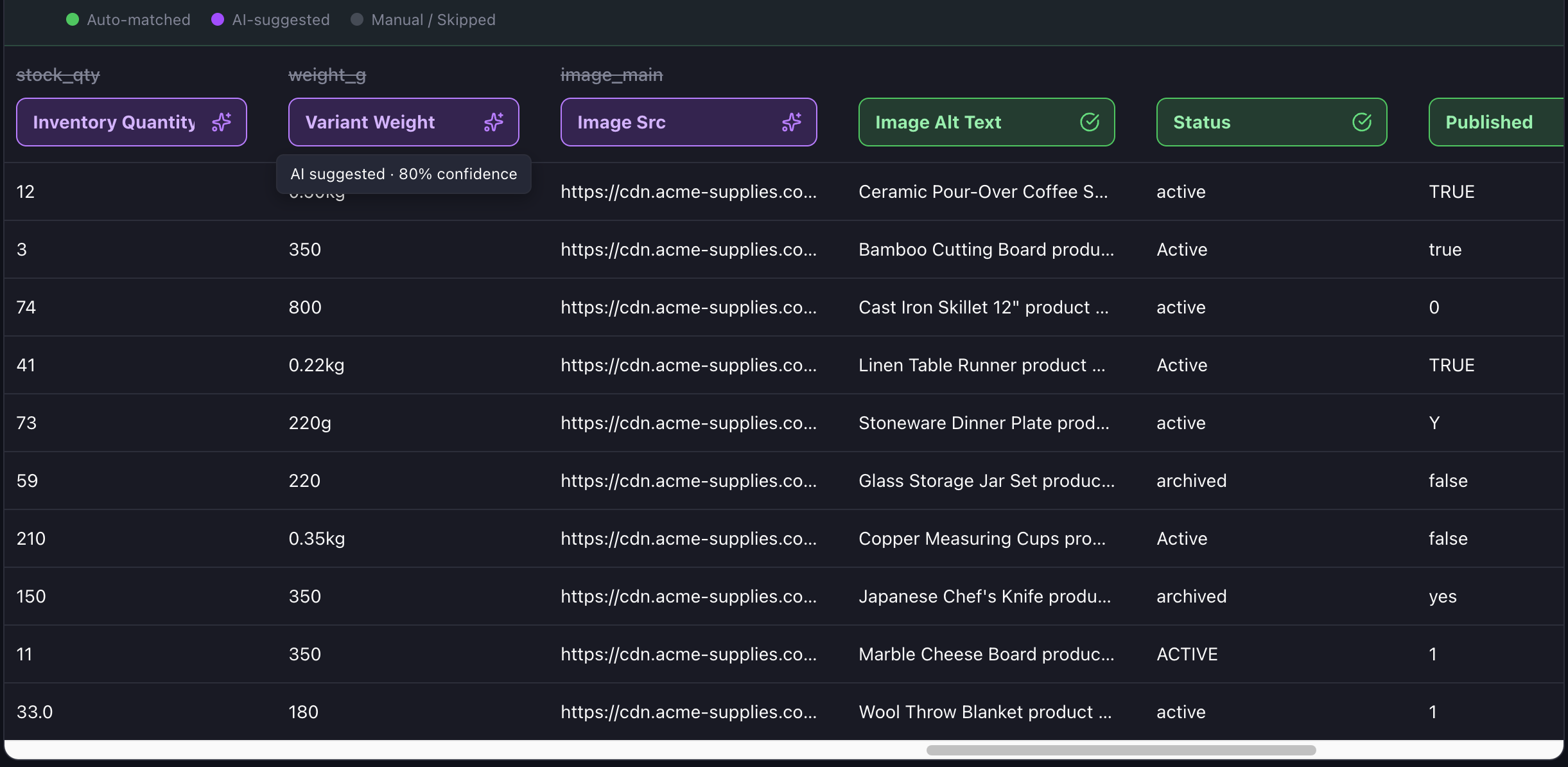
When the levels come as separate numbered columns, Portaim proposes to combine them into one path with Shopify’s > separator:
Every suggestion is shown against a preview of your first rows before you confirm, and you can change any of it. The mapping step only decides which column feeds the field. Whether each value is a real taxonomy entry is settled in the next step.
3. Review the category values in the fix step
Portaim validates every category value against the current version of Shopify’s taxonomy. A value that is already a valid path or ID passes. Every other value is flagged as an invalid category and listed once, with the rows that use it underneath, so a file with 2,000 products and 40 distinct category labels gives you 40 things to look at, not 2,000. Next to each value Portaim shows the nearest taxonomy entry it found as a recommendation. Accept it, accept all recommendations at once, search the taxonomy with autocomplete for a different entry, set all values to one entry, or leave the category empty. One choice applies to every row with that value.
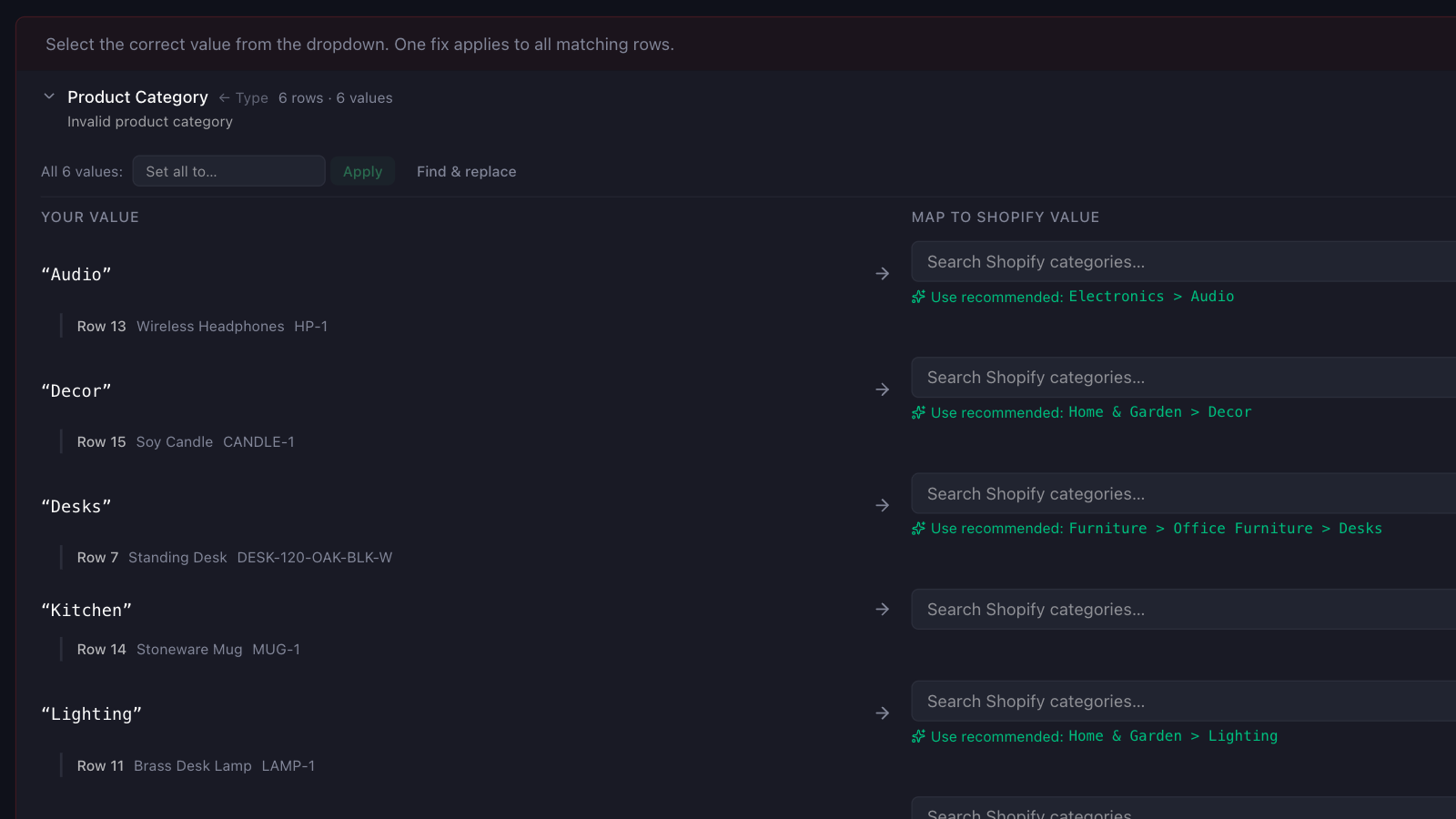
Invalid categories are errors, so the export waits until each value is resolved, cleared, or set to empty. That is deliberate: an unrecognised value would not become a category in Shopify anyway, and it is quicker to decide here, once per value, than to find out after the import.
How category matching works
Every entry in Shopify’s Standard Product Taxonomy has a full path and a short ID. Portaim accepts either form for Product Category, and ignores letter case:
- the full path, such as
Home & Garden > Lighting > Lamps; - the category ID, such as
hg-13-5.
For a value that is neither, the recommendation comes from a text comparison, in stages:
- Separators are unified.
>>,/,|, arrows and dashes are all read as level separators, soLighting / Lampsis compared as a two-level path. - The last segment counts most. Each taxonomy entry is scored on how many words it shares with your value, with the last segment weighted more than the rest of the path. A label like
Table Lampstherefore findsHome & Garden > Lighting > Lamps > Table Lampswithout an exact string match. - Paths that go too deep walk up a level. If the last segment has no counterpart, Portaim drops it and scores the parent path, and returns the deepest level that matches with confidence. A supplier’s
Bedside LampsunderLighting > Lampsresolves to Shopify’s Lamps entry rather than to nothing. - No confident match, no recommendation. A value like
Bagscould sit in several branches of the taxonomy, so Portaim leaves the choice to you and offers the search box instead of guessing.
The recommendation is never applied for you. A text match can be wrong in ways only you can see, so it stays a suggestion until you accept it, per value or for the whole group. What you accept is stored as the full taxonomy path.
Product Category vs Type vs Tags
A common import mistake is to collapse three different Shopify fields into one. They are not interchangeable:
| Shopify field | What it is | Example |
|---|---|---|
Product Category | One entry from Shopify’s taxonomy; used by Shopify for tax and search | Home & Garden > Lighting > Lamps |
Type | Free-text product type you define | Table Lamp |
Tags | Free-text keywords for filtering and automated collections | bedside, dimmable |
Portaim maps the three separately. A category path goes to Product Category, not into Tags, and a supplier’s own type label goes to Type. The two are also treated differently when data is missing: an empty Type can be generated with AI in the fix step from the rest of the row, because it is free text. A category is never invented, because it has to be an entry from the taxonomy.
Files that come from another platform tend to have the opposite need. A WooCommerce export has its own category tree, which Portaim converts into Type and Tags; mapping the converted type column to Product Category as well then puts it through the same matching described above. See the WooCommerce to Shopify migration guide.
Export to Shopify or download a Shopify-ready CSV
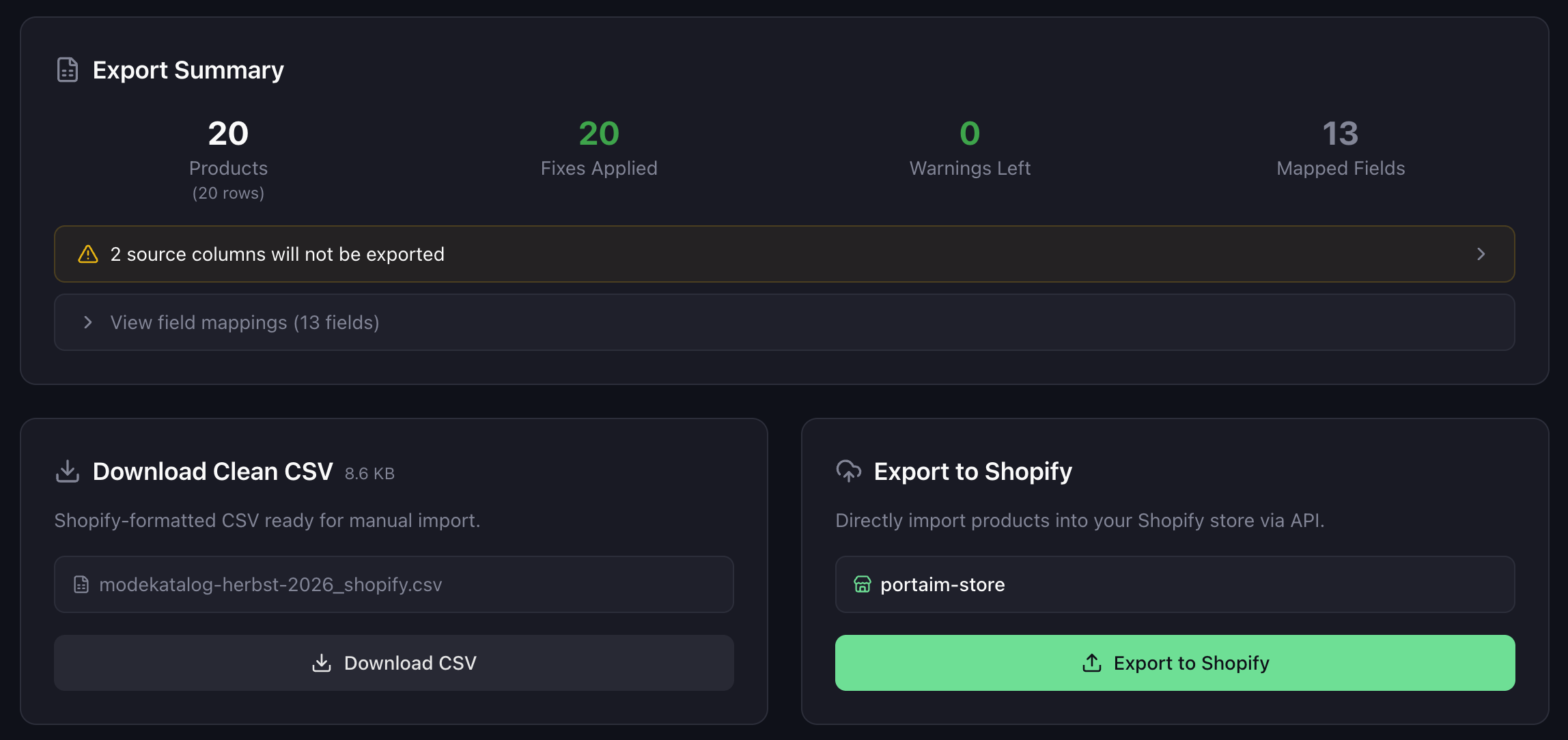
After the categories are settled, you choose how to export:
- Direct Shopify export — connect your store and Portaim sends each product through the Shopify API with the category as a taxonomy ID. Portaim validates against the current taxonomy Shopify publishes, and a store can be a version behind. If your store rejects an entry it does not have yet, Portaim retries with the parent category, then the grandparent, and uses the first one the store accepts. The product is imported either way, with a note on the export telling you which category was used, or that none was.
- CSV download — download a Shopify-formatted CSV with the full taxonomy path in the
Product Categorycolumn, and import it in Shopify admin.
Connecting your Shopify store is optional. You can map and match categories end to end without connecting one, download the clean CSV, check it, and import it on your own schedule.
Built for repeat supplier imports
The same supplier sends the same category labels in its next catalog. Once you have confirmed a mapping, Portaim saves it against the file’s set of column headers, and the next file with the same headers is mapped the same way automatically, including where the category column goes and how level columns are combined. Column order does not matter, and there is no template to name or pick.
Category values are checked again on every import, so a new label the supplier introduces shows up in the fix step as one new item to decide, next to its recommendation.
When this page is for you
Portaim is a good fit if you:
- import supplier files with free-text or hierarchical category data;
- want products to land in Shopify’s
Product Category, not only in tags; - have paths like
Home > Lighting > Lamps, or level columns, that need resolving to taxonomy entries; - reimport the same supplier’s catalog and do not want to redo the category work.
Portaim may not be the right fit if:
- your supplier file has no category data and you assign categories in Shopify by hand;
- your supplier already provides valid Shopify taxonomy paths or IDs, in which case the values pass straight through and this page is not the interesting part;
- you need a full ERP or PIM with its own category management;
- you want a custom one-off migration project rather than a self-service import tool.
Why not write the category paths into the CSV yourself?
You can type category values into a Shopify product CSV by hand. The catch is that Product Category only accepts an exact taxonomy entry, and a supplier’s own label or path is almost never one. The work is a lookup per distinct label against a taxonomy of more than ten thousand entries, and a spelling that has to be exact.
Portaim sits between the supplier file and Shopify:
Supplier category text → Portaim mapping + taxonomy matching + per-value review → Shopify Product Category
The goal is not to replace Shopify’s import. The goal is to turn supplier category data into real taxonomy entries with one decision per distinct value, keep the category tree out of the tags, and not repeat the work every month.
For the full mapping-and-validation flow around this step, see the supplier CSV to Shopify guide or the Portaim docs.
Frequently asked questions
My supplier uses category paths like "Home > Lighting > Lamps". Can Portaim map those?
Yes. A column of category paths is mapped to Shopify's Product Category field, not to Tags or Type. A path that is already an entry in Shopify's taxonomy passes validation as it is. One that is not, such as "Home > Lighting > Lamps" against Shopify's "Home & Garden > Lighting > Lamps", is flagged in the fix step next to the nearest taxonomy entry, and one click applies it to every row with that value.
What format does Shopify's Product Category field expect?
An entry from Shopify's Standard Product Taxonomy, written either as the full path, such as "Home & Garden > Lighting > Lamps", or as the category ID, such as "hg-13-5". Portaim accepts both, ignoring letter case, and checks each value against the taxonomy before export.
What happens when a supplier category does not match Shopify's taxonomy exactly?
It is flagged as an invalid category in the fix step, grouped with every row that uses the same value. Portaim compares the words in your value with each taxonomy entry, weighting the last segment most, and shows the closest entry as a recommendation you can accept per value or for all values at once. If nothing is close enough, there is no recommendation and you search the taxonomy with autocomplete instead. You can also leave the category empty.
Is the product category the same as the product type?
No. Product Category is an entry from Shopify's fixed taxonomy and is used by Shopify for tax and search. Type is free text you define, and Tags are keywords. Shopify itself says to put a category that has no taxonomy match under Product Type. Portaim maps the three fields separately, so a category path does not become a tag.
Do I have to set a product category?
No. The field is optional and an empty value passes validation. If you do map a category column, each invalid value is an error, and the export waits until every one is fixed, cleared, or set to empty.
What if my store's taxonomy is older than the category Portaim matched?
On a direct export, Portaim sends the category as a taxonomy ID. If your store rejects it because its taxonomy version does not include that entry yet, Portaim retries with the parent category, then the grandparent, and uses the first one your store accepts. The product is imported either way, with a note telling you which category was used. Stores pick up new taxonomy versions automatically over time.
Can I create my own categories in Shopify?
No. Shopify's Product Category only takes entries from its Standard Product Taxonomy. Your own category tree belongs in Type, Tags and collections. Portaim can fill Type from a supplier column or generate it with AI in the fix step when it is missing, and a WooCommerce export's categories are converted to Type and Tags automatically.
Related use cases
Import Supplier CSVs into Shopify Without Manual Cleanup
Import supplier CSV, XLSX, and XLS files into Shopify without spreadsheet cleanup — AI column mapping, 40+ validation rules, auto-fix for common issues, and export as a Shopify-ready CSV or direct API push.
Migrate WooCommerce Products to Shopify from a CSV Export
Migrate products from WooCommerce to Shopify by uploading its built-in CSV export: variations become variants, attributes become options, categories become tags.
Put your products in real Shopify categories
Upload the supplier file as it is. Portaim maps the category column, matches each value to Shopify's taxonomy and lets you settle the odd one in a click, then exports with the category on the product.