Import Supplier CSVs into Shopify Without Manual Cleanup
·
Import supplier CSV, XLSX, and XLS files into Shopify without spreadsheet cleanup — AI column mapping, 40+ validation rules, auto-fix for common issues, and export as a Shopify-ready CSV or direct API push.
Free plan available · No credit card required · Shopify connection optional
The problem with supplier CSV files
Shopify can import products from a CSV file, but supplier spreadsheets are usually not prepared for Shopify. Shopify expects a specific column layout — and supplier files almost never use it.
A supplier file may have columns like:
| Supplier column | Example value | Why it can be a problem |
|---|---|---|
| Product Name | Premium Leather Chair | Needs to map to Shopify’s Title |
| Retail Price EUR | €129,90 | Currency symbol and comma decimal need normalization for Variant Price |
| Item Code | CHAIR-BLK-01 | Should map to Variant SKU |
| Photo 1 | http://supplier.com/img.jpg | Needs to map to Image Src; https:// is usually safer for public image URLs |
| Availability | In stock | Does not directly match Shopify’s active / draft / archived statuses |
| Weight KG | 1,4 kg | Needs cleanup before it can be exported into Shopify-compatible weight fields |
A direct import often means manual work:
- renaming supplier columns to Shopify’s expected names;
- copying values into Shopify’s expected fields;
- fixing prices, weights, and booleans;
- checking duplicate or missing SKUs;
- validating image URLs;
- making sure required fields like
TitleandVariant Priceare populated; - repeating all of it the next time the supplier sends a file.
Portaim is built for this exact workflow.
How Portaim helps
1. Upload your supplier file
Upload a CSV, XLSX, or XLS file from your supplier.
You can use Portaim even if the file does not match Shopify’s CSV format yet. After upload you pick the sheet (for multi-sheet XLSX files) and the header row so Portaim knows where your product data starts.
One kind of file skips the mapping work entirely: a WooCommerce product export is recognised on upload and converted to Shopify’s shape before you see it — see the WooCommerce to Shopify migration guide for what the conversion does with variations, categories and images.
2. Map supplier columns to Shopify fields
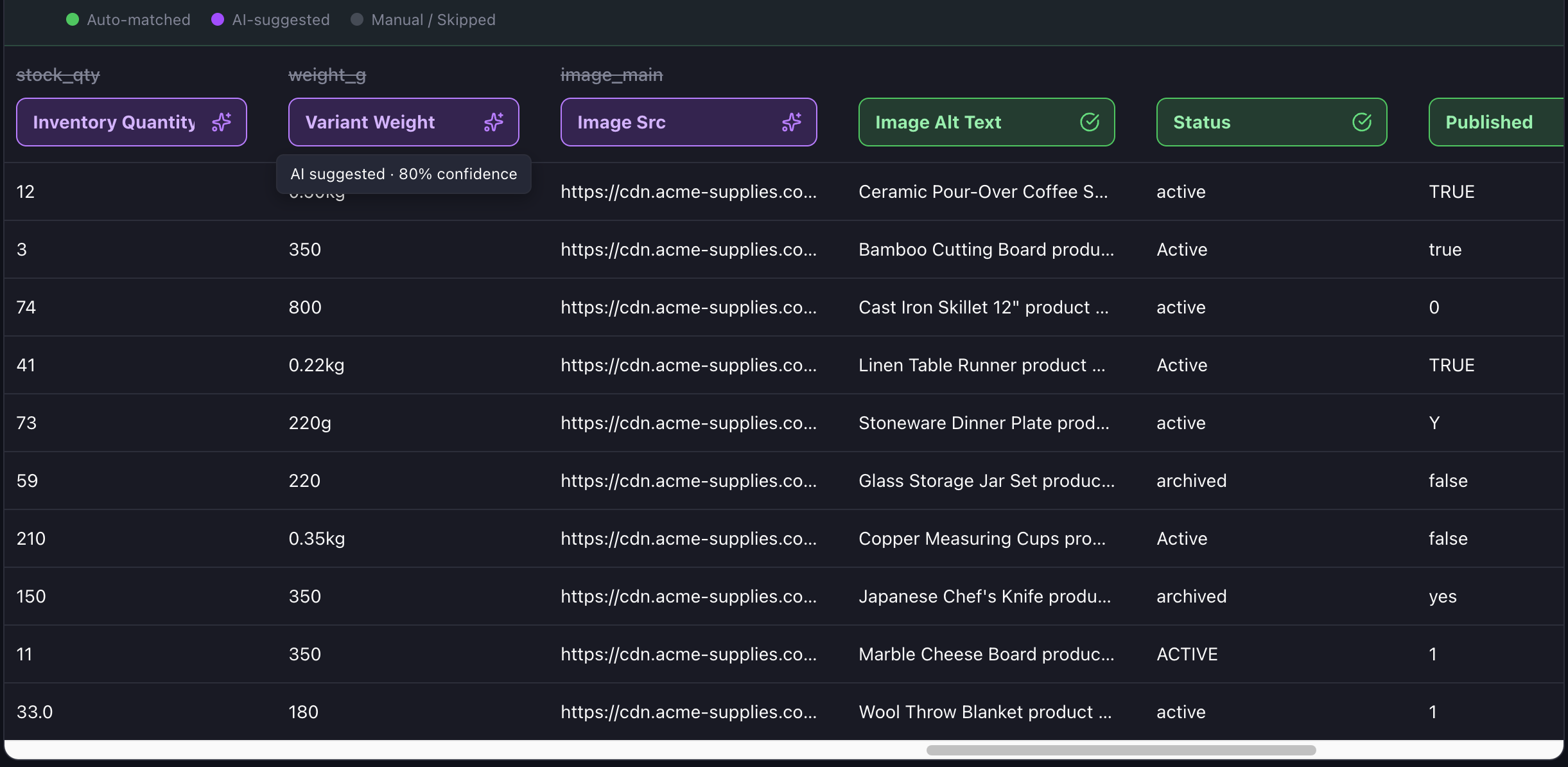
Portaim suggests mappings between supplier columns and the official Shopify product CSV fields.
For example:
| Supplier column | Shopify field |
|---|---|
| Product Name | Title |
| Description | Body (HTML) |
| Item Code | Variant SKU |
| Retail Price EUR | Variant Price |
| Wholesale Cost | Cost per item |
| Photo 1 | Image Src |
| Brand | Vendor |
| Category | Product Category |
Review every suggestion before confirming, override any that does not fit, and Portaim's template auto-save remembers your corrections the next time a supplier file with the same column layout is uploaded — no re-mapping from scratch.
The category column deserves a closer look than the rest: a supplier label or path is rarely an entry in Shopify’s taxonomy word for word, and the fix step matches each value to the nearest one for you to confirm — see the supplier categories to Shopify taxonomy guide.
For product photography spread across several columns (image_1, image_2, image_3…), the mapper builds a real Shopify image gallery instead of picking one column and losing the rest — see the bulk-import image galleries guide.
3. Catch Shopify CSV import issues before export
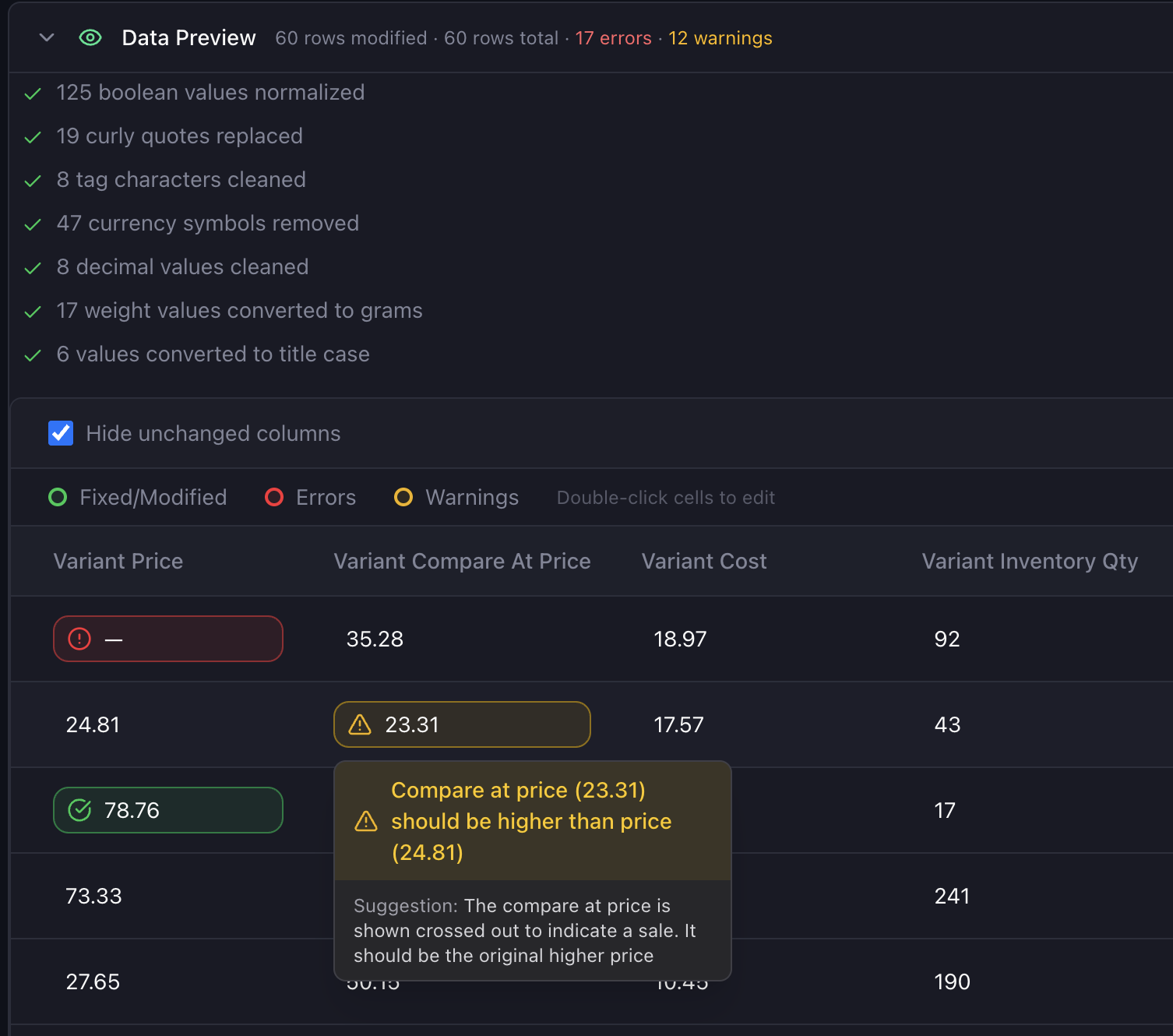
Before sending products to Shopify, Portaim checks your mapped data against common CSV import issues and Shopify field expectations.
Common supplier-file issues and what Portaim does about them:
| Issue | Example | Why it matters | Portaim |
|---|---|---|---|
Missing Title | empty product name | Product rows need enough product data to be created correctly | Flagged as a required-field error |
| Blank or invalid price | —, €19,90 | Shopify price fields expect normalized numeric monetary values | Flagged before export or normalized where possible |
| Currency symbol in price | €19,90 | Currency symbols and comma decimals can cause import or formatting problems | Auto-fix can strip the symbol and normalize the decimal |
Duplicate Variant SKU | same SKU on multiple rows | Duplicate SKUs make inventory tracking and product updates harder to trust | Flagged across rows so you can review them |
Invalid Image Src | supplier-image-1 | Shopify needs publicly accessible image URLs during CSV import | Flagged as an invalid URL |
http:// image URL | http://… | Public https:// image URLs are safer and more reliable for imports | Warning before export |
| Status not in Shopify’s list | enabled, live, yes | Shopify product status uses values such as active, draft, or archived | Suggests the closest valid value |
| Weight format issue | 1,4 kg | Weight values need cleanup before export into Shopify-compatible fields | Unit suffix (kg, g…) stripped automatically; comma-decimal values are flagged in the fix step for a manual normalize |
| Compare-at price issue | 15.00 / 15.00 | Compare-at price should usually represent a higher original price | Flagged as a warning |
Portaim also catches variant-related problems that are easy to miss during spreadsheet cleanup — for example, missing option names, duplicate option combinations, or incomplete option columns.
Variants — color, size, and other product options
Variants are one of the trickiest parts of any Shopify CSV import. Shopify represents variants as multiple rows that share the same Handle, with each row carrying explicit option fields such as Option1 Name and Option1 Value. Products with two or three option axes use Option2 Name / Option2 Value and Option3 Name / Option3 Value as well.
Supplier files vary widely in how they handle this:
- Shopify-style. Some supplier files already include explicit
Option1 Name/Option1 Valuecolumns. Portaim maps these directly. - Flattened columns. Some files use a single column per variant attribute, such as
Color,Size, orMaterial, where each row contains the value for that variant. Portaim helps you map these to Shopify’s option columns and flags missing option names so your variant structure is not changed unexpectedly during import or update — see the variants from a supplier file guide for how rows are grouped into products and which variant errors are caught. - Combined columns. Some suppliers cram every variant attribute into a single column like
VariantorAttributeswith values likeRed / Small. Portaim's Split editor breaks that back into real Option1 / Option2 fields — see the variant options guide for the full walkthrough. - Single-variant catalogs. Some suppliers send one row per product with no variants. These map to Shopify without option columns.
Portaim catches common variant traps before export, including:
- duplicate option combinations on the same product;
- option values without a matching option name;
- gaps in option numbering — if you leave
Option1empty but mapOption2, the export compacts them so Shopify still receives a valid Option1/Option2 pair.
Export to Shopify or download a Shopify-ready CSV
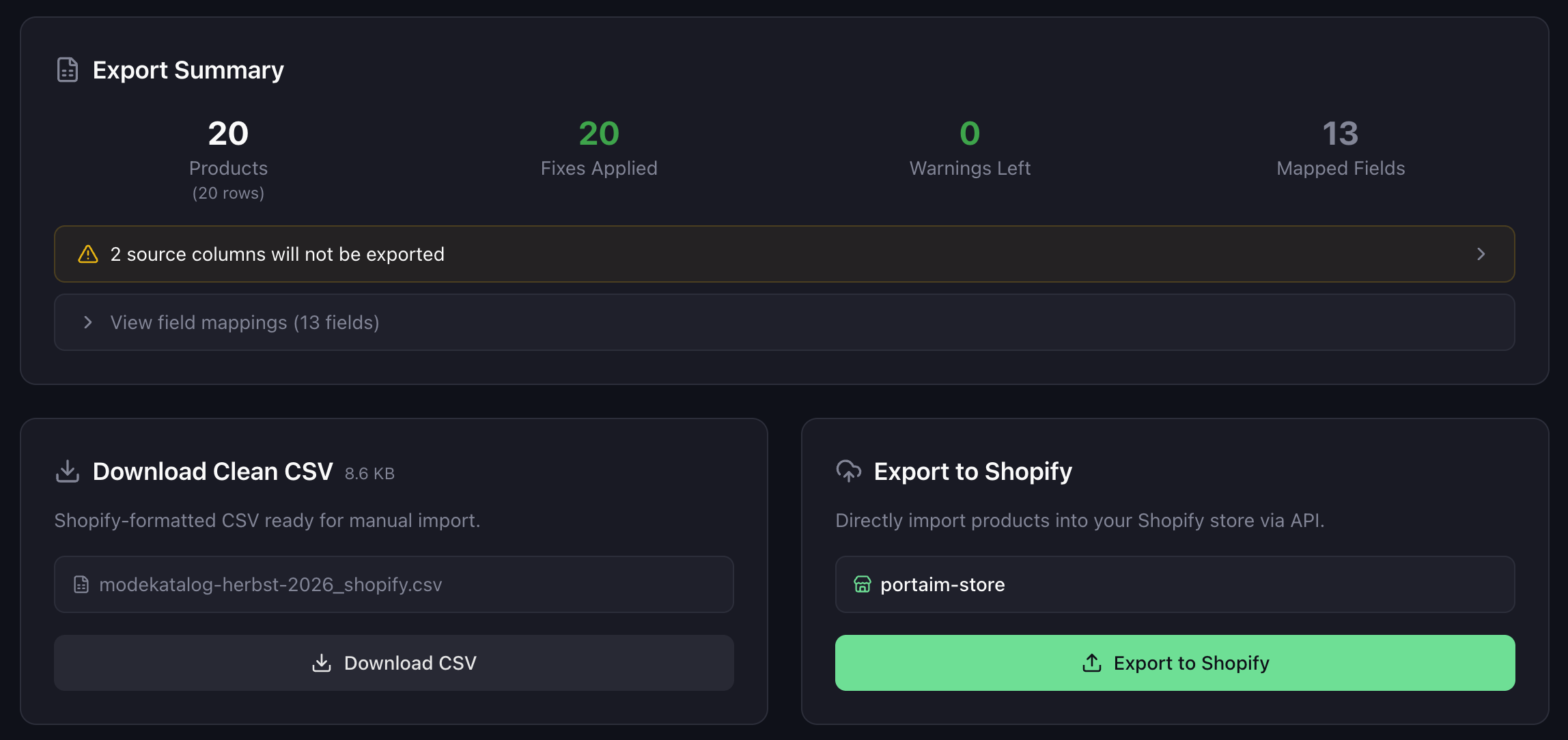
After mapping and validation, you choose how to export:
- Direct Shopify export — connect your Shopify store and Portaim sends products via the Shopify API.
- CSV download — download a Shopify-formatted CSV and import it manually in Shopify admin.
Connecting your Shopify store is optional. You can use Portaim end-to-end and never connect a store — download the clean CSV, review it, and import it on your own schedule.
If Portaim is installed from the Shopify App Store, it also runs inside the admin, and Sidekick can report where an import stands, why rows failed the checks and what an export changed — see what Sidekick can do with your imports.
Built for repeat supplier imports
Most merchants do not import supplier files only once. The same supplier sends an updated catalog next month, then the month after.
Portaim recognizes when a supplier file with the same column layout is re-uploaded and applies your previous mapping automatically, so you can move to validation with less re-mapping and less setup. The matching is based on the file’s column structure — a fingerprint of the headers — so you do not need to remember a template name.
This is especially useful when:
- the same supplier sends regular product updates;
- each supplier has a different spreadsheet format;
- you work with multiple brands or wholesalers in parallel;
- you want a repeatable import process instead of manual cleanup every time.
When this page is for you
Portaim is a good fit if you:
- sell on Shopify;
- receive supplier, wholesaler, distributor, or dropship CSV/XLSX files;
- spend time cleaning product spreadsheets manually;
- need to map supplier columns to Shopify fields;
- want to catch CSV import issues before export;
- want to reuse mappings for repeat supplier files.
Portaim may not be the right fit if:
- you only add a handful of products manually;
- your supplier already provides a perfect Shopify-ready CSV;
- you need a full ERP or PIM system with inventory sync, accounting, and order management;
- you want a custom one-off migration project rather than a self-service import tool.
Why not just import the supplier CSV directly into Shopify?
If a supplier file already follows Shopify’s expected CSV format, you can import it directly.
But most supplier files do not. They use different headers, localized values such as German Beschreibung or French Prix, currency symbols, custom availability values, http image URLs, missing or extra columns, and inconsistent SKUs.
Portaim sits between the supplier file and Shopify:
Supplier CSV/XLSX → Portaim mapping + validation + fixes → Shopify-ready export
The goal is not to replace Shopify’s import. The goal is to prepare supplier data so the import is less likely to fail, your variant structure is not changed unexpectedly, and the same cleanup does not need to be repeated manually every month.
For a feature-by-feature breakdown and pricing, see the Portaim homepage.
Frequently asked questions
Can I import Excel supplier files, or only CSV?
You can upload CSV, XLSX, and XLS files, or paste a link to one (Google Drive, Google Sheets, Dropbox, or any file URL). Portaim parses all three formats, converts a WooCommerce export to Shopify's shape automatically, then exports a Shopify-ready CSV or pushes products directly to Shopify.
Do I need to connect my Shopify store?
No. Connecting Shopify is optional — you can use Portaim end-to-end and just download a Shopify-ready CSV, then import it in Shopify admin yourself.
Can Portaim handle different supplier formats?
Yes. Portaim is designed for supplier files with different headers, languages, and structures. You map columns once with AI assistance, override any suggestions that do not fit, and Portaim can reuse the mapping the next time the same supplier sends a file with the same layout.
Does Portaim change existing products?
Portaim only writes to Shopify when you export, and even then only in the mode you pick. The default export creates new products; if you choose upsert mode it looks up products by handle and updates the existing ones. Review the export settings carefully — especially when working with existing SKUs or product updates.
How does Portaim handle product variants?
Each variant can be exported as a separate row sharing the same Handle, with Option1 Name / Option1 Value and Option2 / Option3 fields if applicable. Portaim flags variant problems before export, such as duplicate option combinations, missing option names, and non-sequential option slots.
What counts as a processed row?
A processed row is a data row from your uploaded file, excluding the header row. For example, a file with one header row and 500 product rows counts as 500 processed rows.
Is Portaim free?
Yes. Portaim is free, with monthly import and processed-row limits and no charges of any kind.
Related use cases
Split Combined Variant Columns into Shopify Options
Supplier files often cram variants into one column like "Red / Large". Here's how Portaim splits it into real Shopify Option1 / Option2 values.
Bulk Import Product Image Galleries from a Supplier CSV
Supplier files often spread product photos across several columns. See how Portaim turns image_1, image_2, image_3 into a real Shopify image gallery.
Turn your supplier file into Shopify-ready products
Upload your supplier CSV, XLSX, or XLS file, map columns to Shopify fields, validate the data, fix common issues, and export products with less manual spreadsheet work.