Import Shopify Product Variants from a Supplier File
Supplier Color and Size columns become Shopify variants: rows grouped by handle, option names filled in, duplicate and missing options caught before export.
Free plan available · No credit card required · Shopify connection optional
The problem with supplier variant data
Variants are the part of a Shopify product CSV import that goes wrong most often. Shopify represents a product’s variants as several rows that share one Handle, and each row spells out its options in pairs of fields: Option1 Name with Option1 Value, up to Option3. A supplier file almost never arrives in that shape.
A supplier file describes the same thing like this:
| Supplier column | Example value | Why it is a problem |
|---|---|---|
| Product | Cotton Tee | Repeats on every variant row; nothing says these rows are one product except the matching name |
| Color | Black | Needs to become an option with a name (Option1 Name) and a value (Option1 Value) |
| Size | Large | A second option needs Option2 Name / Option2 Value |
| Variant | Red / Small | Two option values in one cell that have to be split across two options |
| SKU | TEE-RED-S | Fine as a Variant SKU, until the same code appears on two rows |
The row structure is the part spreadsheets are worst at. Three supplier rows for one t-shirt have to become three Shopify rows that share a handle, carry the product’s title on the first row only, and name their options on every row:
| Product | Color | Size | SKU |
|---|---|---|---|
| Cotton Tee | Black | S | TEE-BLK-S |
| Cotton Tee | Black | M | TEE-BLK-M |
| Cotton Tee | White | M | TEE-WHT-M |
| Handle | Title | Option1 Name | Option1 Value | Option2 Name | Option2 Value | Variant SKU |
|---|---|---|---|---|---|---|
| cotton-tee | Cotton Tee | Color | Black | Size | S | TEE-BLK-S |
| cotton-tee | — | Color | Black | Size | M | TEE-BLK-M |
| cotton-tee | — | Color | White | Size | M | TEE-WHT-M |
The Product column becomes the handle and the title. The Color and Size headers become the option names, and their cells the option values, one variant per row.
Doing that by hand for a real catalog means:
- giving every row of a product the same
Handle, and making sure two different products never share one; - turning each attribute column into an
Optionname and value pair; - splitting combined values such as
Red / Smallinto two options; - checking that no two rows of a product have the same option values;
- checking that no SKU appears twice;
- doing it again the next time the supplier sends a file.
Portaim is built for exactly this reshaping.
How Portaim helps
1. Upload your supplier file
Upload a CSV, XLSX or XLS file, or paste a Google Drive, Google Sheets, Dropbox or plain file link. For a workbook with several sheets you pick the sheet and the header row, so Portaim knows where the product data starts.
2. Group the rows into products
Shopify groups variants by handle, so the first thing the mapping decides is where the handle comes from. A Handle column in your file is used as it is. Without one, Portaim looks for a column whose value repeats across a product’s rows, such as the product name or a parent item code, and builds the handle from it: lowercased, accents removed, spaces turned into hyphens. Rows with the same handle become one product, and the product’s title, description and images are taken from its first row.
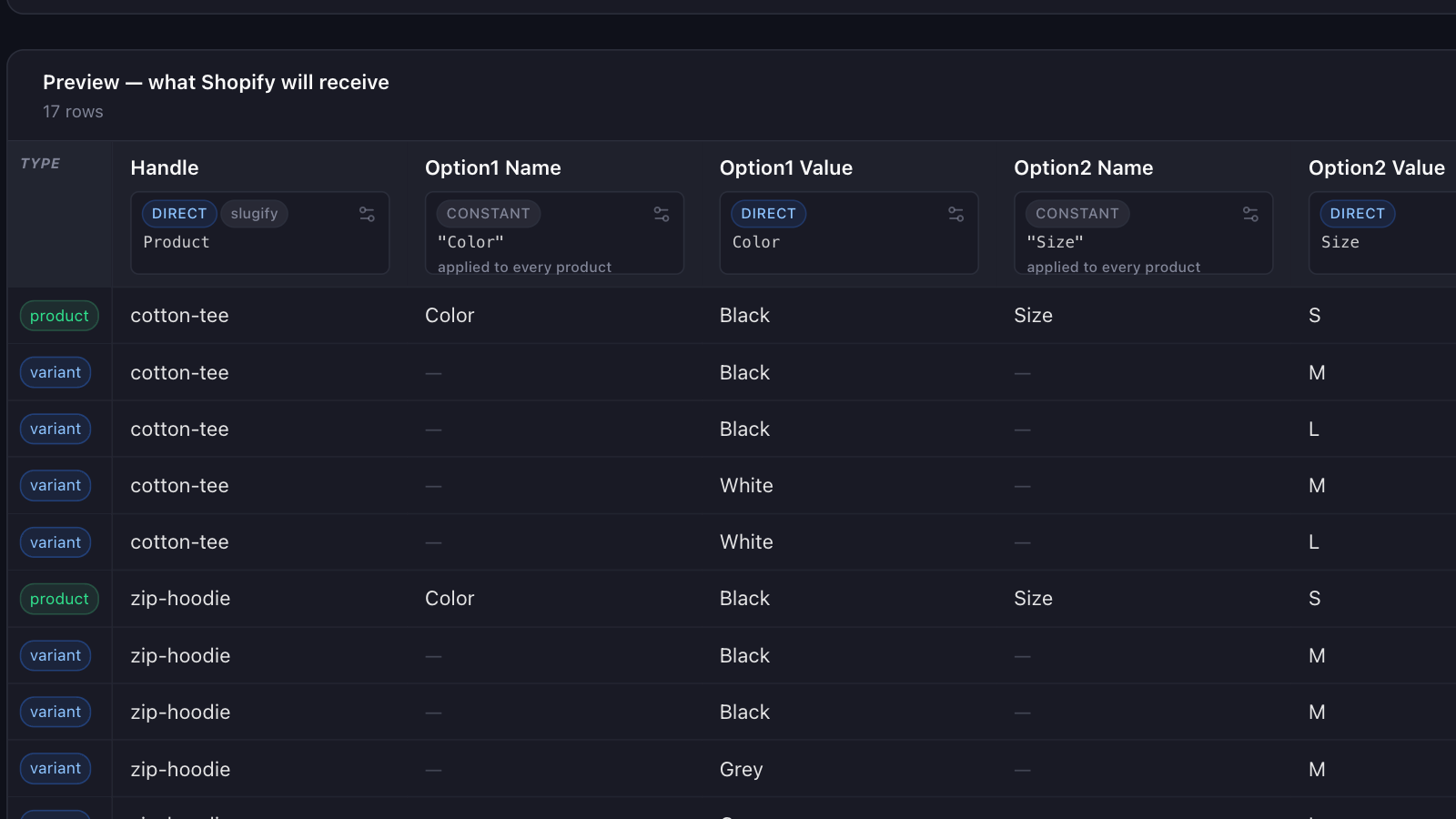
The mapping preview labels each row as a product or a variant, so a grouping that went wrong is visible before anything is exported. If the wrong column was chosen, change the handle’s source column in the mapping editor and the grouping updates.
3. Map the option columns
An attribute column maps to an option value, and its header becomes the option name, applied as one value to every product. For a two-option product that looks like:
| Supplier column | Shopify field |
|---|---|
| Product | Title, and Handle via slugify |
| Color | Option1 Value, with Option1 Name set to Color for every product |
| Size | Option2 Value, with Option2 Name set to Size |
| SKU | Variant SKU |
| Price | Variant Price |
The option name is editable, so a supplier’s Colour or Farbe header can become Color before it reaches your store. A header that is not an attribute name, such as Attribute 1, is not used as one: the name is left blank and the fix step asks you for it, rather than your products getting an option called “Attribute 1”.
When one column holds several attributes, such as Red / Small, the mapping splits it by a separator and assigns each piece to its own option. The split variant columns guide covers that case, including rows where the value has fewer pieces than expected.
4. Catch variant errors before export
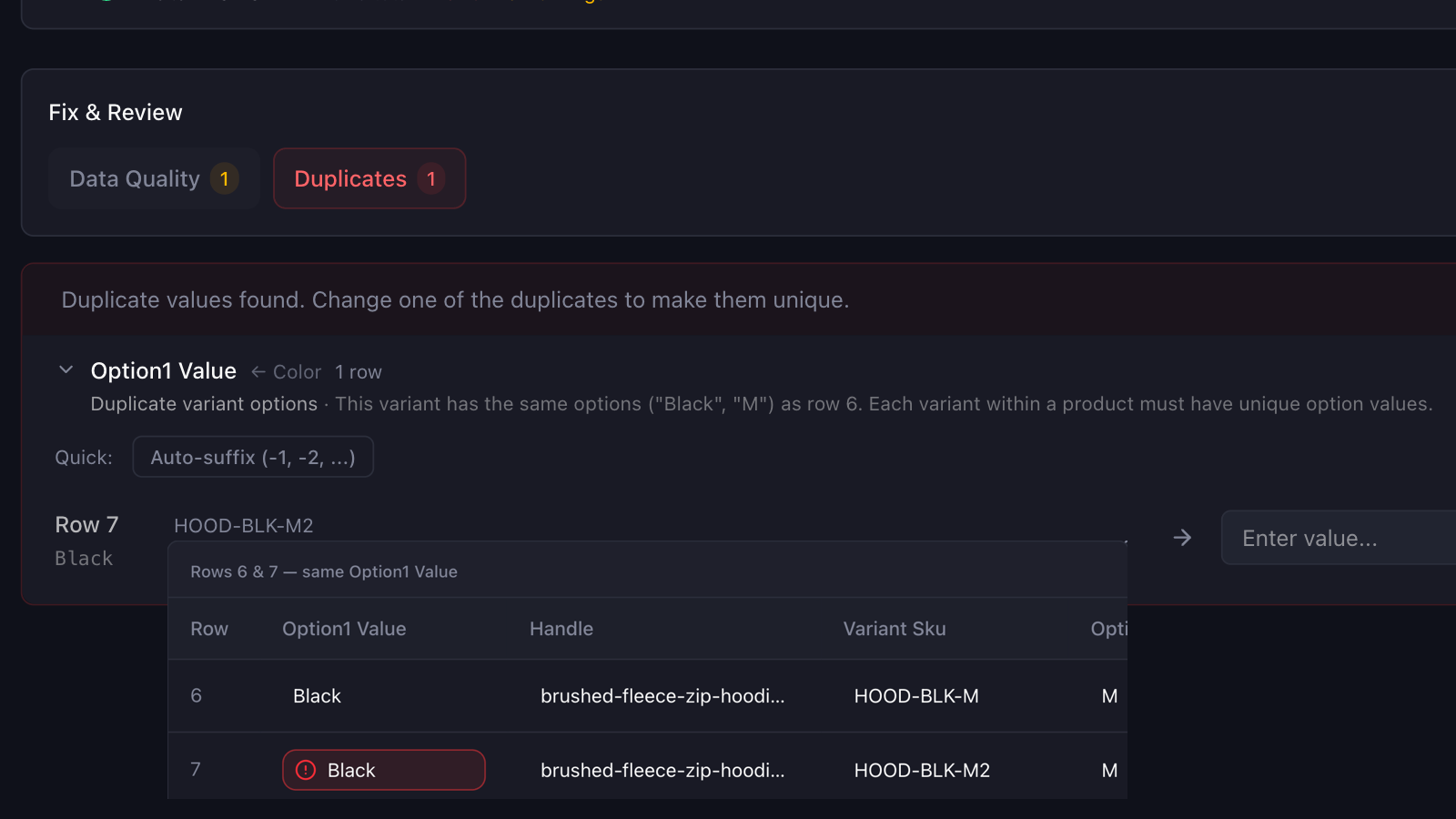
Before anything reaches Shopify, Portaim checks the mapped rows against Shopify’s variant rules and the common CSV import issues Shopify documents, and groups what it finds per product. The list of checks is below.
Variant shapes in supplier files
Supplier files express variants in a handful of shapes. Each takes a different path through the mapping:
- Shopify-style. A Shopify export, a filled-in Shopify template or the output of another migration tool already has
Option1 Name/Option1 Valuecolumns. When every column in the file is a Shopify column, Portaim maps it column for column without the AI step, with nothing to guess. - Flattened columns. One column per attribute,
Color,Size,Material, with each row carrying that variant’s value. This is the shape this page is about: the header becomes the option name and the rows are grouped by handle. - Combined values. One column holds several attributes, such as
Red / Small. The mapping splits it into separate options; see the split variant columns guide. - Parent and child rows. A WooCommerce export lists a variable product on one row and its variations underneath, linked by a parent ID. Portaim recognises the export and converts it to Shopify’s shape before mapping; see the WooCommerce to Shopify migration guide.
- Single-variant catalogs. One row per product with no options. These map without option columns, and on a direct export each product gets Shopify’s default single variant.
Variant errors Portaim catches before export
Most variant problems are easy to miss in a spreadsheet and only show up as a failed import, or as a product whose variants are not what you expected. Portaim flags them first. Errors have to be resolved before export; warnings are for you to judge.
| Issue | Example | Why it matters | Portaim |
|---|---|---|---|
| Duplicate option combination | two rows of one product both Black / M | Shopify rejects the import with an “options are not unique” error | Error per product; add an automatic suffix, drop the duplicate row, or fix the value |
Multi-row product with no Option1 value | three rows share a handle, option value blank | The rows cannot be told apart, so the variant structure is not what you expect after import | Error; set a value, or Default in one click |
| Product with variants but no option name | values mapped, Option1 Name blank | An option needs a name and a value to be defined | Error; type a name, or pick Size, Color or Style in one click |
| Same name on two options | Option1 Name and Option2 Name both Color | Shopify requires distinct option names within a product | Error; usually two supplier columns mapped to the same name, corrected in the mapping |
| Option name differs between rows | Colour on one row, Color on the next | The first row’s name defines the product’s option; the rest should match | Warning |
| Named option with an empty value | option name Size, cell blank | A variant with no value for one of its options is ambiguous | Warning |
| Duplicate SKU | TEE-BLK-M on two rows | Inventory tracking depends on each variant having its own SKU | Warning; add an automatic suffix in one click |
| One handle, two products | rows with the same handle but different titles | Two products would be merged into one with the second product’s title lost | Warning; change the handle’s source column, or add a suffix |
One thing is corrected without being flagged: if a mapping fills Option2 and leaves Option1 empty, the export renumbers the options so Shopify receives them in order.
Export to Shopify or download a Shopify-ready CSV
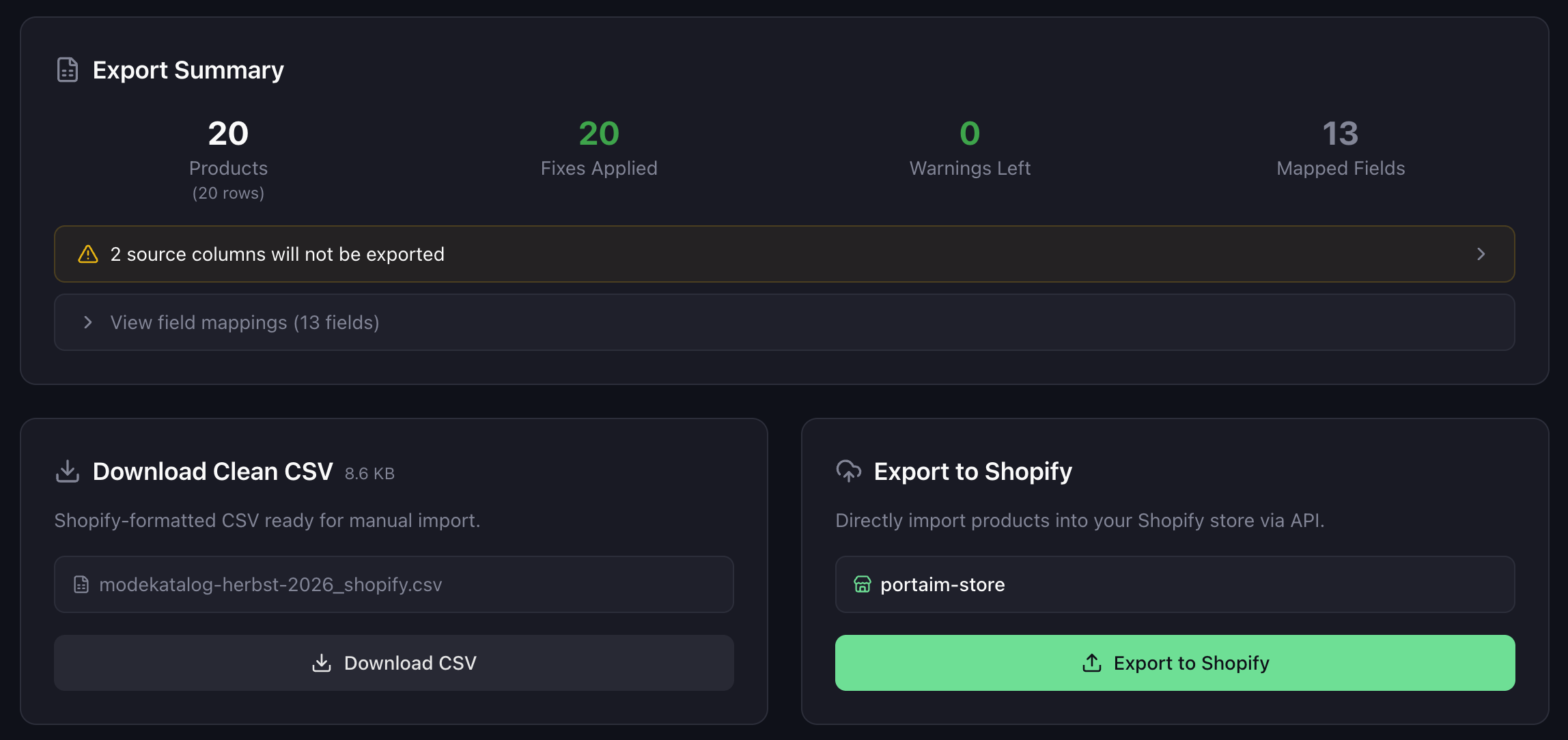
After mapping and validation, you choose how to export your variants:
- Direct Shopify export — connect your Shopify store and Portaim sends each product with its options and variants through the Shopify API, including inventory quantities and variant images. Switch on Import as Draft to keep every product unpublished until you have looked at it in Shopify.
- CSV download — download a Shopify-formatted CSV with one row per variant under a shared
Handle, the product fields on the first row, andOption1toOption3filled in, then import it in Shopify admin.
Connecting your Shopify store is optional. You can prepare variants end to end without connecting one, download the clean CSV, check it, and import it on your own schedule.
Built for repeat variant imports
A supplier that sends variant catalogs rarely sends one. The same layout comes back next month with new colors, sizes and SKUs.
Once you have confirmed a mapping, Portaim saves it against the file’s set of column headers, and the next file with the same headers is mapped the same way automatically: the handle source, the option names, and any split. Column order does not matter, and there is no template to name or pick. The variant checks run again on every file, so a new duplicate is caught even though the mapping was reused.
When this page is for you
Portaim is a good fit if you:
- sell products with color, size or other options on Shopify;
- receive supplier files where each attribute is its own column and the product name repeats on every row;
- want duplicate or incomplete variants caught before they reach Shopify;
- reimport the same supplier’s variant catalog on a schedule.
Portaim may not be the right fit if:
- you only sell single-variant products and add them by hand;
- your supplier already provides a valid Shopify variant CSV, in which case the file maps column for column and there is little left to do;
- you need a full ERP or PIM with live inventory sync across variants;
- you want a custom one-off migration project rather than a self-service import tool.
Why not reshape the variants by hand?
You can reshape variants in a spreadsheet before a Shopify CSV import. The problem is that the rules are unforgiving and the mistakes are quiet. A duplicate option combination fails the import, a missing option value leaves you with a product whose variants are not the ones in the file, and two products that slugify to the same handle silently become one.
Portaim sits between the supplier file and Shopify:
Supplier attribute columns → Portaim grouping + option mapping + validation → Shopify variants
The goal is not to replace Shopify’s import. The goal is to reshape supplier variant data so the import does not fail, the products carry the variants the file describes, and the same reshaping is not repeated by hand every month.
For the full mapping-and-validation flow around this step, see the supplier CSV to Shopify guide or the Portaim docs.
Frequently asked questions
My supplier file has one Color column and one Size column. Can Portaim turn those into Shopify variants?
Yes. Color maps to Option1 Value and Size to Option2 Value, and Portaim fills the option names Color and Size from the column headers as a value applied to every product. You can rename either in the mapping editor. Rows that belong to the same product are grouped by their handle, so three rows of one t-shirt become one product with three variants.
What decides which rows belong to the same product?
The handle. If your file has a Handle column it is used as it is. Otherwise Portaim builds the handle from the product name, or from a column such as a parent code whose value repeats across a product's rows, lowercased and hyphenated. Rows with the same handle become one product. If two different products end up with the same handle, the fix step flags it.
My variant values are combined into one column, like "Red / Small". Does Portaim handle that?
Yes. The mapping step splits the column by a separator you choose and assigns each piece to its own option, so Red becomes the Option1 value and Small the Option2 value. The split variant columns guide covers that case in detail.
Does Portaim catch duplicate variants?
Yes. When two rows of one product have the same option values, Shopify rejects the import with an "options are not unique" error. Portaim flags it as an error before export. You can add an automatic suffix to make the values distinct, drop the duplicate row, or fix the source value.
How many options can a Shopify product have?
Three. Shopify's product CSV has Option1, Option2 and Option3, and Portaim's mapping offers exactly those three targets, so a fourth attribute column has to go somewhere else, such as Tags, or be left unmapped.
My file already has Option1 Name and Option1 Value columns. Is that handled?
Yes. A file whose columns are all Shopify's own, such as a Shopify export or a filled-in Shopify template, is mapped column for column without the AI step. A supplier file that mixes Shopify headers with its own columns goes through the normal mapping.
Do I need to connect my Shopify store to prepare variants?
No. Connecting Shopify is optional. You can map and validate variants end to end, download a Shopify-ready CSV and import it in Shopify admin yourself.
Related use cases
Split Combined Variant Columns into Shopify Options
Supplier files often cram variants into one column like "Red / Large". Here's how Portaim splits it into real Shopify Option1 / Option2 values.
Import Supplier CSVs into Shopify Without Manual Cleanup
Import supplier CSV, XLSX, and XLS files into Shopify without spreadsheet cleanup — AI column mapping, 40+ validation rules, auto-fix for common issues, and export as a Shopify-ready CSV or direct API push.
Turn supplier attribute columns into real Shopify variants
Upload the file as your supplier sends it. Portaim groups the rows into products, fills in the option names and values, catches duplicate and missing options before export, and remembers the mapping for next month's file.