Can Shopify Sidekick Import Products from a Spreadsheet?
Sidekick doesn't bulk-import spreadsheets itself; with Portaim installed it reports where an import stands, why rows failed and what an export changed.
Free plan available · No credit card required · Shopify connection optional
What Sidekick does with products today
The short answer: Sidekick does not bulk-import a supplier spreadsheet on its own. Shopify’s help pages describe Sidekick as the assistant inside the admin that answers questions, analyses data, manages orders, edits products, writes content, and works with installed apps. Bulk product import is a separate feature: the CSV importer under Products → Import, which expects Shopify’s own column headers, UTF-8 encoding and a file no larger than 15 MB.
That is the gap a supplier file falls into. The spreadsheet from your wholesaler or distributor has its own headers, prices with currency symbols, availability words instead of Shopify statuses, and variants spread or crammed across columns. Sidekick can talk about the file with you, but somebody still has to turn it into Shopify’s shape before the importer accepts it.
What happens when you ask Sidekick for help with an import, before and after Portaim:
| You ask Sidekick | Sidekick on its own | With Portaim installed |
|---|---|---|
| “Import my supplier’s price list” | Points you to the CSV importer and its column layout | The upload, mapping, checks and export happen in Portaim; Sidekick reports on them afterwards |
| “What’s the status of my product imports?” | Has no import to look at | Lists your recent files, which step each one is waiting on, with a link |
| “Why did my import have errors?” | Can explain Shopify’s CSV rules in general | Reads the check results of your file: which fields, how many rows, an example of each problem |
| “What did the import change in my store?” | Can search your products, but not tie them to an import | Reports what the last export created, updated or could not create, product by product |
The rest of this page is the right-hand column: what Sidekick can answer about your imports once Portaim is installed, what it reads to do that, and where the spreadsheet itself goes.
What Sidekick can answer with Portaim installed
1. Turn Portaim on in Sidekick
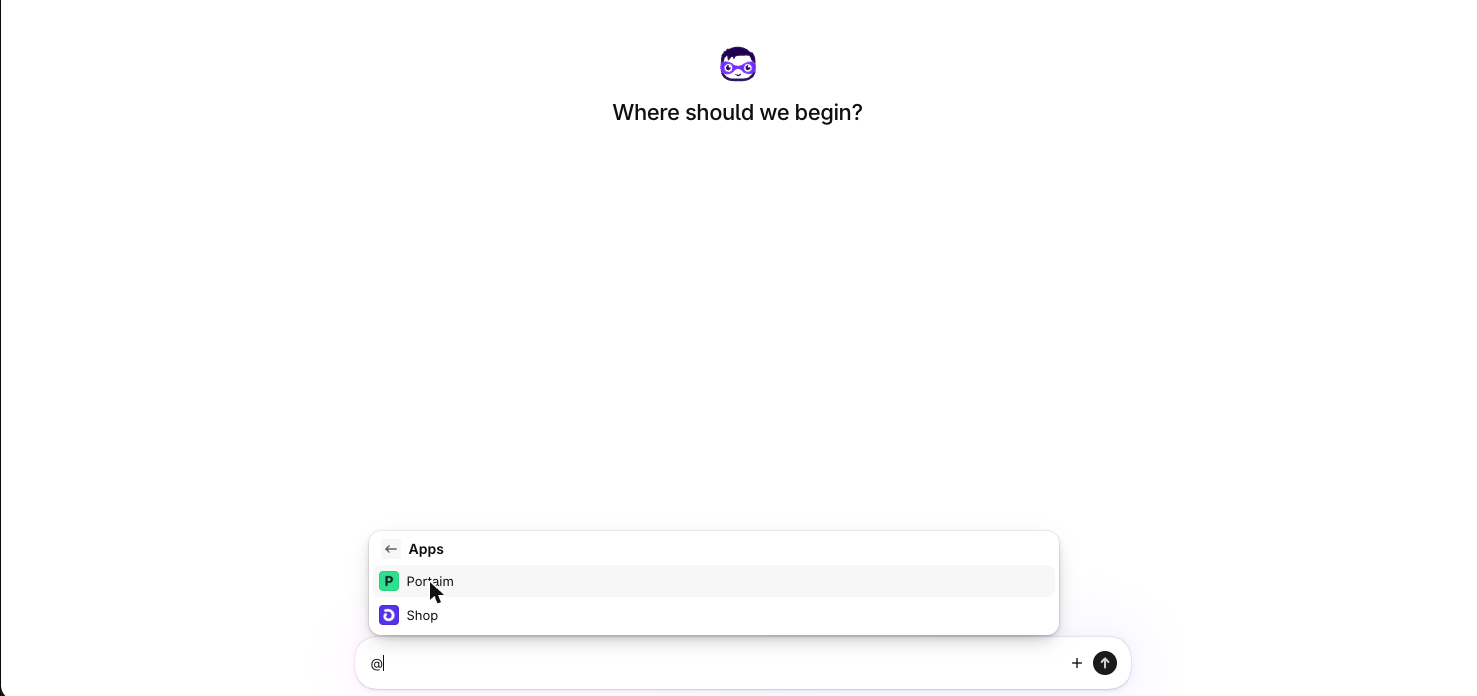
Portaim runs inside the Shopify admin once it is installed from the App Store, and that is also what makes it visible to Sidekick. Sidekick asks for your approval before it uses an installed app, and the approval covers the current conversation. Type @ in the Sidekick box, pick Portaim, and approve the prompt. Until you do, Sidekick answers that Portaim is not enabled in this conversation.
2. “What’s the status of my product imports?”
Sidekick lists your recent files, newest first, and says in plain words where each one is: waiting for you to map columns, checked with so many errors and warnings, ready to export, exported, or processing in the background. You can narrow it: “which imports need my attention?” returns only the ones waiting on you.
Each file comes with a link that opens the right step of that import inside the admin: the mapping page for a file that has just been parsed, the Fix step for a checked one, the Export step for one that is ready. The link is the point; the answer is there to tell you which one to open.
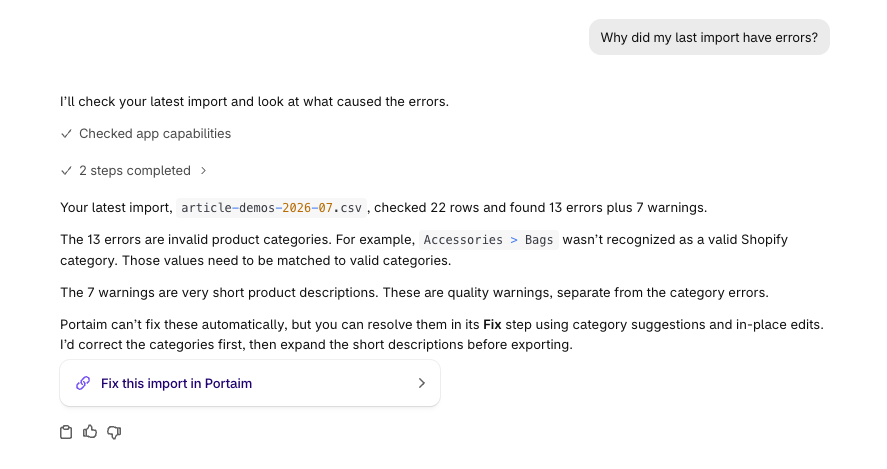
3. “Why did my last import have errors?”
This is the question the tools were built for. Sidekick takes the newest import that has been through the checks, or the one you name, and reads its results: how many rows were checked, how many errors and warnings there are, and how many Portaim can fix in one click. Then it reads the problems grouped by Shopify field, each with the number of rows affected and one example message, in the same grouping the Fix step uses.
A typical answer names the two or three groups that account for most of the errors, say unrecognised product categories on eleven rows and TRUE in the status column on nine, mentions the stragglers, and suggests where to start. It also tells which groups Portaim can fix for you and which need a decision: a wrong status value is mapped once for every row in the Fix step, and an unrecognised category gets suggestions from Shopify’s product taxonomy.
If the newest import has not been checked yet, Sidekick says which step it is waiting on instead of inventing errors.
4. “What did Portaim change in my store?”
Sidekick reads the last export runs to your store: how many products each one created, updated or could not create, and for the failures the product handle and Shopify’s reason, so “Handle already in use” or “Variant price must be a number” is in the answer, not behind a click.
An import that you finished by downloading the Shopify-ready CSV instead of exporting directly is reported as exactly that: Portaim made no changes in the store for it, and any products came from uploading that CSV to Shopify yourself.
What Sidekick reads, and what it does not
Each question maps to one read-only lookup in Portaim. Sidekick sends the question, Portaim answers with facts and a link, and Sidekick writes the reply. Nothing in the exchange changes an import.
What each lookup returns:
| Question | What Portaim returns | Link |
|---|---|---|
| Status of my imports | File name, step, a one-line summary, error and warning counts once checked, dates | The step each import is waiting on |
| Why an import has errors | Totals, then problems grouped by Shopify field: rows affected, one example message, whether it is a one-click fix | The Fix step |
| What an export changed | Products created, updated and failed, with the handle and reason for each failure | The Export step |
What Sidekick does not get:
- your spreadsheet, or the product rows in it — the answers carry file names, counts, one example message per problem and the handles of failed products;
- a way to change anything — the tools only read, and Sidekick only uses an app after you approve it for the conversation;
- imports from another store — each store sees its own.
So when you ask Sidekick to fix the invalid values, it will tell you, correctly, that the changes are made in Portaim’s Fix step, and hand you the link.
Where the spreadsheet itself goes
The import that Sidekick reports on is an ordinary Portaim import, started from the Upload button inside the admin: a CSV, XLSX or XLS file, a Google Sheets, Drive or Dropbox link, or a WooCommerce export. Portaim maps the columns to Shopify fields, combining or splitting them where the file needs it, checks every row against Shopify’s rules, and lets you fix what the checks found — the full walkthrough is in the supplier CSV to Shopify guide.
At the end you choose how the products reach the store:
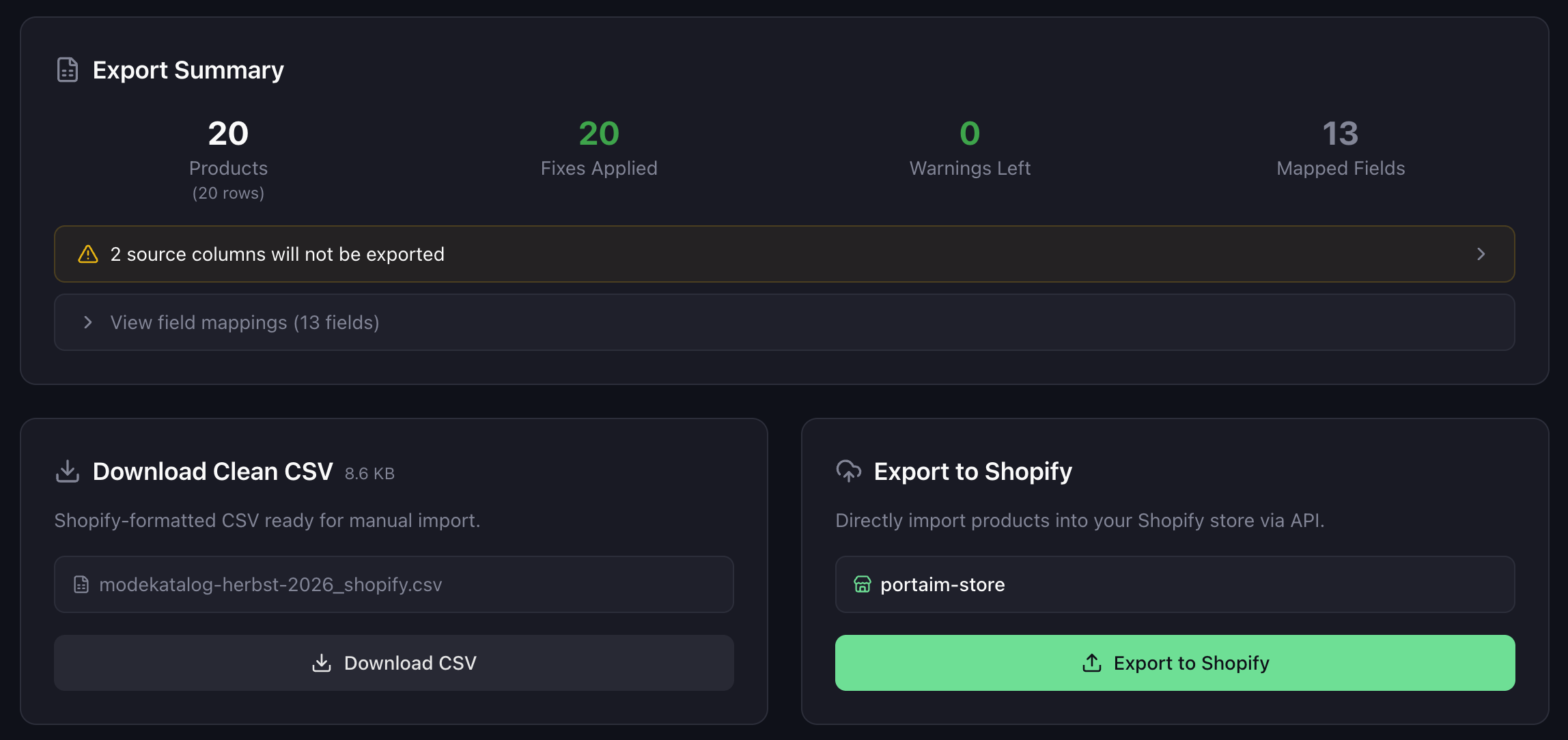
- Direct export — Portaim sends the products to your store through Shopify’s API, in the background, with the option to create every product as a draft. This is the path Sidekick can report on product by product.
- CSV download — a Shopify-formatted CSV you import yourself under Products → Import. Sidekick will tell you that Portaim made no changes in the store for that file.
Inside the admin the store is connected from the first open. If you use the standalone app at app.portaim.com instead, connecting a store stays optional: you can download the CSV and never connect one.
Next month’s file
Supplier files come back. When the same supplier sends a file with the same column layout, Portaim applies your previous mapping automatically, so the next import goes straight to the checks.
Sidekick fits the same rhythm: after the upload, “does my new import have errors?” tells you whether this month’s file needs a look before you export it, without opening the import to find out.
When this page is for you
The Sidekick tools are useful if you:
- use Portaim inside the Shopify admin, installed from the App Store;
- import supplier files regularly and want to know which ones need attention without opening each;
- want the reason an import stalled explained before you open the Fix step;
- want to confirm what an export did in the store from where you already are.
They will not help if you:
- expect Sidekick to import, map or fix a spreadsheet by itself — that work happens in Portaim;
- only use the standalone app without an App Store install, since Sidekick lives in the admin;
- are not using Sidekick at all — everything the tools report is also on Portaim’s dashboard.
Sidekick alone, or Sidekick with Portaim?
On its own, Sidekick is the fastest way to ask Shopify how its CSV importer works and to edit products that are already in the store. It does not hold your supplier file, so it cannot say why row 23 was rejected or whether this month’s catalog is ready.
With Portaim installed, the import has a place to live, and Sidekick can read it:
The division of labour is deliberate. Sidekick is where you ask; Portaim is where the file is mapped, checked, fixed and exported, with every change previewed before it reaches the store. The tools keep that boundary, which is why the answers end in a link rather than an action.
For what the import itself looks like, see the supplier CSV to Shopify guide, or the Portaim homepage for the feature overview.
Frequently asked questions
Can Shopify Sidekick import products from a CSV or Excel file?
Not on its own. Shopify's bulk product import is the CSV importer under Products > Import, and it expects Shopify's own column layout. Sidekick edits products and answers questions about your store; turning a supplier spreadsheet into Shopify products is what Portaim does, and Sidekick can then report on those imports.
What can Sidekick tell me about my Portaim imports?
Three things: where each import stands and which step is waiting for you; why an import has errors, grouped by Shopify field with the number of rows affected; and what the last export to your store created, updated or could not create. Every answer links to the matching step in Portaim.
Can Sidekick fix the errors or start an export?
No. Portaim's Sidekick tools only read. Mapping columns, fixing rows and exporting happen in Portaim, which is why each answer comes with a link to the right step.
Why does Sidekick say Portaim isn't enabled?
Sidekick asks for your approval before it uses an installed app, and the approval applies to the current conversation. Type @, pick Portaim, approve the prompt, and ask again. If Portaim is not in the list, it is not installed from the App Store on this store.
Does this work in the standalone Portaim app?
The imports do: the standalone app at app.portaim.com and the embedded app share the same account and data. Sidekick itself lives in the Shopify admin, so the questions are asked there, about a store that has Portaim installed from the App Store.
What data does Sidekick see?
What the tools return: file names, import status, the check totals and issue groups with one example message each, export counts, and the handles of products that failed to export. Sidekick does not receive your spreadsheet or the product rows themselves.
Is Portaim free?
Yes. Portaim is free, with monthly import and processed-row limits and no charges of any kind. The Sidekick tools are part of the app.
Related use cases
Import Supplier CSVs into Shopify Without Manual Cleanup
Import supplier CSV, XLSX, and XLS files into Shopify without spreadsheet cleanup — AI column mapping, 40+ validation rules, auto-fix for common issues, and export as a Shopify-ready CSV or direct API push.
Map Supplier Categories to Shopify's Product Taxonomy
Supplier category labels and paths are matched to Shopify's product taxonomy and land as real Product Category values, not tags, with one review per value.
Turn your supplier file into Shopify-ready products
Upload your supplier CSV, XLSX, or XLS file, map columns to Shopify fields, validate the data, fix common issues, and export products with less manual spreadsheet work.