Fix issues
Portaim checks every row against Shopify's rules, separates errors from warnings, and resolves them with auto-fixes, value mapping, AI suggestions or a cell edit. Skip what's broken exports the rest.
Errors and warnings
After the mapping is confirmed, Portaim runs its checks against every row and groups what it finds:
- Errors are values Shopify would reject, such as a missing title, a price with a currency symbol, or a status that is not
active,draftorarchived. Every error has to be fixed or skipped before export. - Warnings are values Shopify accepts but that will cause trouble later: an SEO title longer than search results show, a product with no description, a duplicate SKU. You can fix them or leave them.
Issues are grouped by kind (Invalid Values, Invalid URLs, Format Errors, Data Quality, Missing Fields, Duplicates, Cross-Field Issues), and each group says how many fields it affects, with the number of rows behind that count. Every check, with its severity and the resolution it offers, is listed in Validation rules.
Four ways to resolve an issue
Portaim offers them in this order, cheapest first.
1. Auto-fix
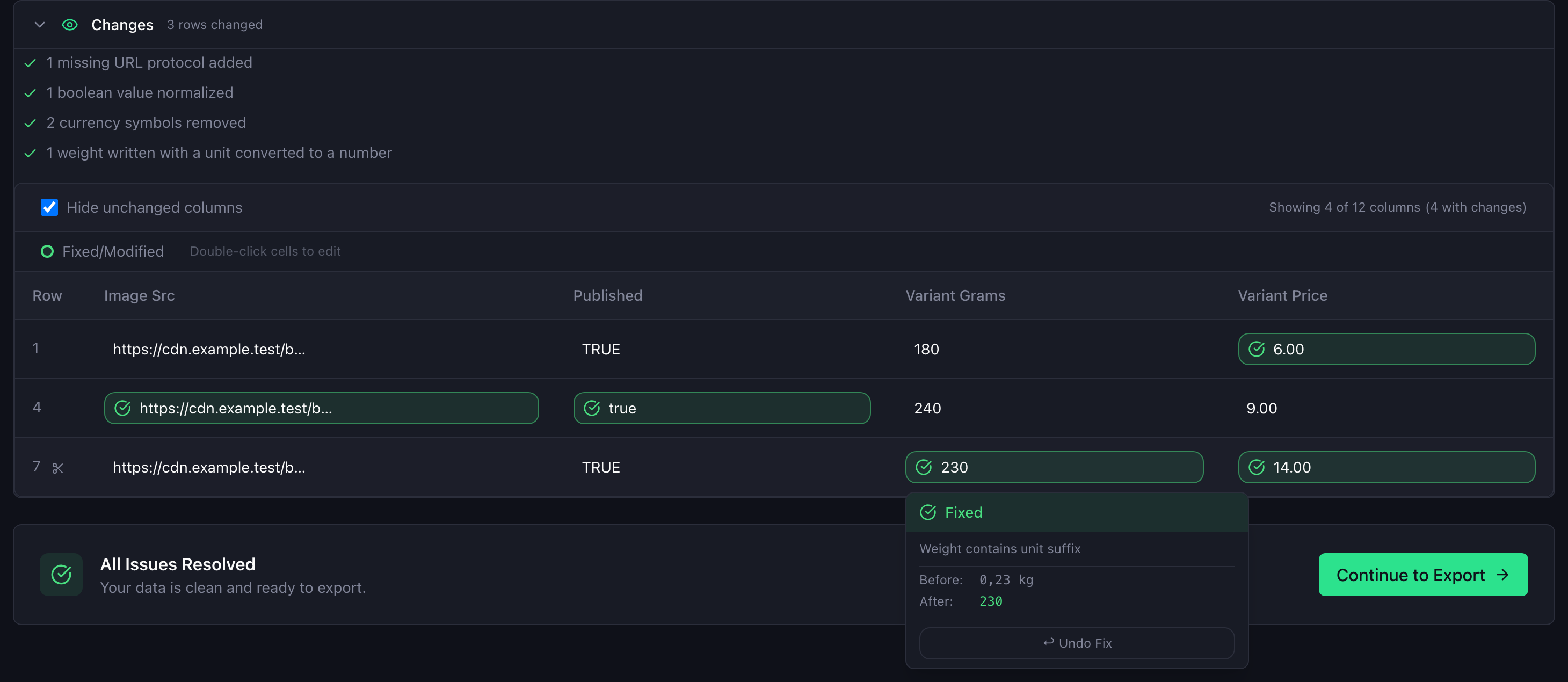
Formatting problems with one correct answer are fixed when the Fix step opens: currency symbols and thousands separators in prices, unit suffixes in weights, weight units written out (kilograms to kg), unit price units written out as words (gram to g, Stück to item), decimals in stock counts, leading and trailing spaces, curly quotes, yes and no where Shopify wants true and false, handles with spaces or capitals. Every fix is then listed by kind, and a fixed cell can be undone one at a time.
2. Value mapping
When a column holds a set of values Shopify does not know, such as enabled and disabled for a status, value mapping replaces each distinct value everywhere it appears. Portaim recommends the obvious translations (published → active, hidden → draft) as a Use recommended chip per value, or Apply recommended for the whole group, and shows the result before you apply it. Fields with a fixed list of values get a dropdown of Shopify’s choices.
3. AI suggestions
For text fields Portaim can write or improve a value from the rest of the row: title, description, product type, SEO title, SEO description, tags and image alt text. The Enhance with AI group lists the still-empty cells of such a field, including a field your file never had if you added it at the mapping step. The sparkle button on a cell suggests one value; Suggest values fills the group’s empty cells, up to 50 rows at a time. Suggestions are shown for review before they are applied.
4. Manual editing
A changed cell can be edited directly in the Changes table at the top of the step; a cell Portaim fixed can be undone there. Rows that should not be imported at all can be deleted and restored.
Product categories and attributes
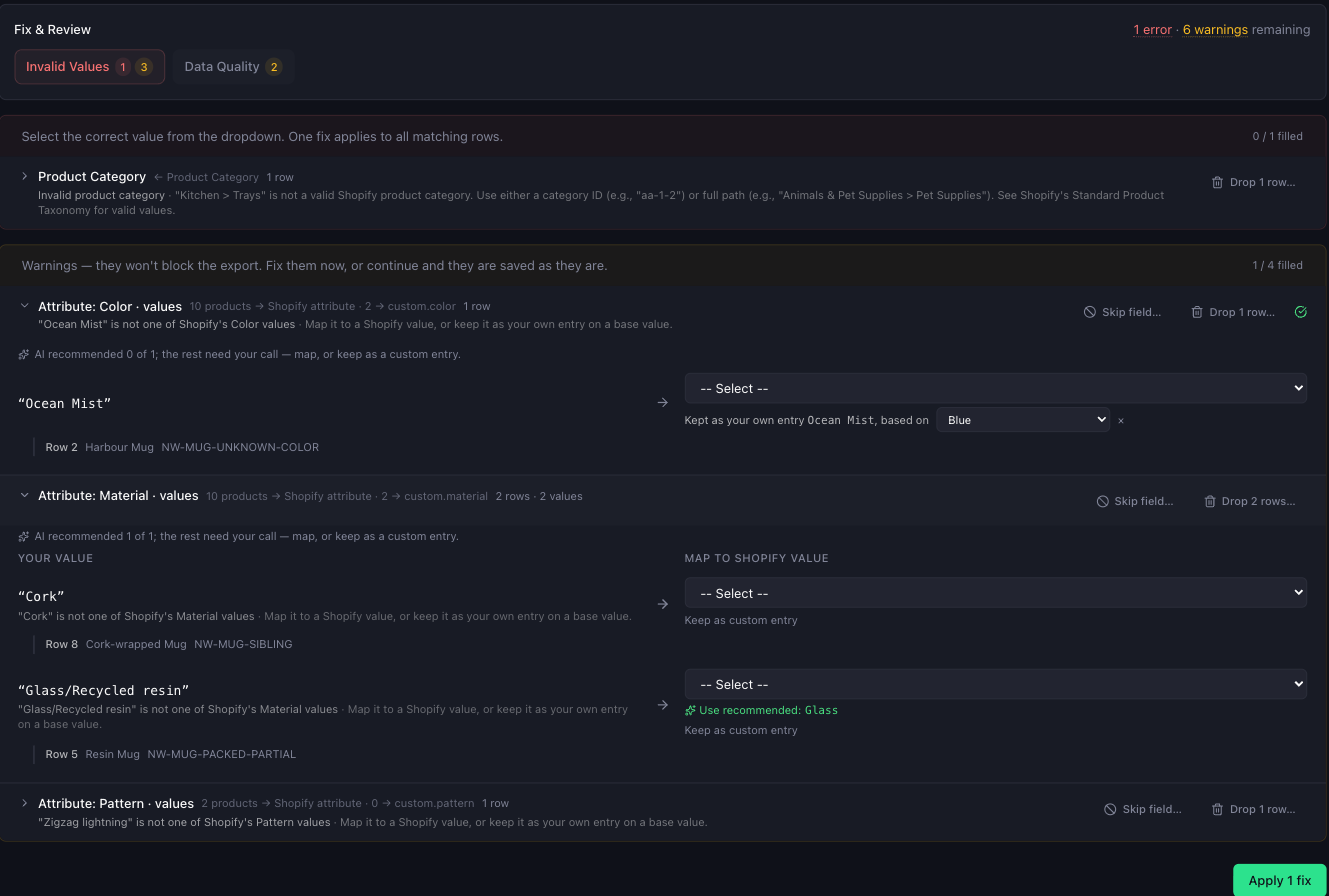
Categories that did not match Shopify’s taxonomy exactly get a group of their own: each distinct supplier value is listed once with the match Portaim found and alternatives to pick from, so a category used on 400 rows is reviewed once.
Product attributes work the same way. A value that is not one of Shopify’s values for that attribute is mapped to one of them, or kept as your own entry on a base value, the Shopify value it stands for. Shopify requires that base for every attribute, so Portaim asks for one; a value left unresolved is saved as a custom metafield. A product without a category is listed with a category picker, because the category decides which attribute its values belong to. Attribute warnings never block the export.
Set rows aside
To leave a product, variant or image out of the export instead of fixing it now, click Set aside on an issue group, or the scissors that appear when you hover a single row. A product takes its variants and images with it. The rows are listed under Set-aside rows in the Fix step, where Restore brings one back.
The products you set aside come back at the Export step with any that Skip what’s broken set aside, to download or fix as a new import. An image you set aside is listed in the report there, not in the download.
Skip what’s broken
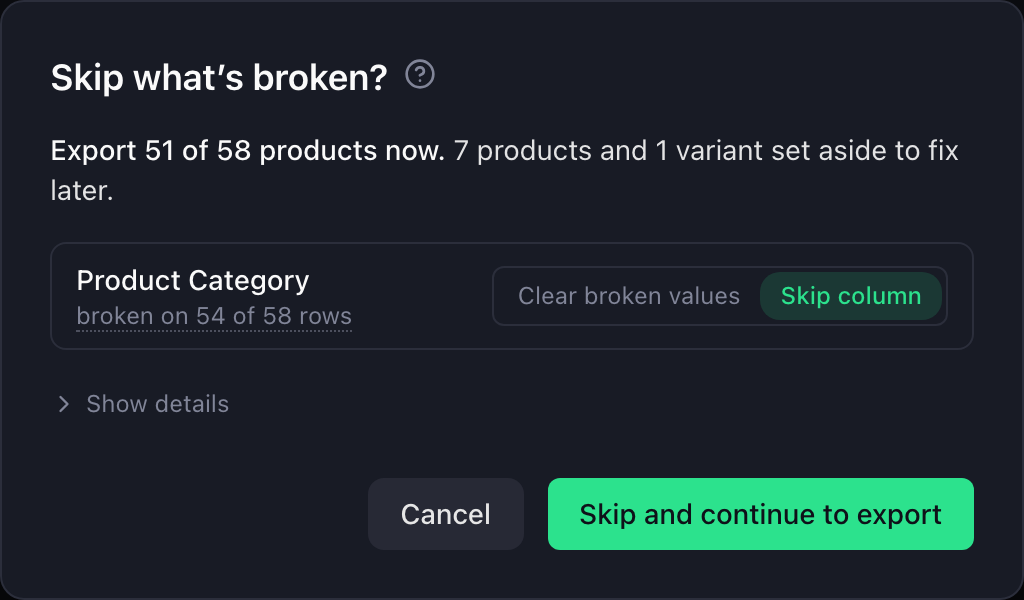
Next to the Apply button, Skip what’s broken… exports the products that are ready and sets the rest aside instead of fixing them. It leaves out the least it can:
- a broken value in an optional field is cleared;
- a broken variant is set aside before its whole product, and a broken first variant gives way to the next one;
- a product goes only when it cannot be kept;
- a column that is broken on most of its rows can be skipped as a whole, if you choose.
Warnings are never touched. A preview lists what will be kept, cleared and set aside, field by field, before anything changes.
Afterwards the Export step shows the set-aside products, including any you set aside yourself: download them in your file’s own columns, download a report of what happened and why, open them as a new import with Fix them now (same mapping, and its Shopify export updates the products already in your store), or undo the skip. Undo brings back only what the skip set aside.
Good to know
- Nothing is sent to Shopify without your confirmation. Apart from the auto-fixes, which run when the Fix step opens and can be undone, every change is one you apply.
- After you apply fixes, Portaim checks the whole file again in the background and shows Rechecking issues… until it is done. The counts update when it finishes, and Continue to Export waits for it.
- Going back to the mapping step and confirming again without changing anything keeps your fixes and re-runs nothing. Changing a mapping rebuilds the rows, so the checks run again and the fixes made on the old rows are gone.
- A unit price needs all four values: how much the variant holds and its unit, the quantity the price is shown per and its unit. Both units have to measure the same thing, because Shopify ties the base unit to the total unit (Unit pricing). Only some of the four, or grams priced per 100 ml, is an error to clear before you export.
- A variant with no price exports at 0.00, so it would appear free in your store. Portaim warns on the export page when that is about to happen.
What to do next
When no errors remain, or the broken products are set aside, click Continue to Export and go to Export.
Related
- Validation rules
- Shopify limits
- Import Supplier CSVs into Shopify Without Manual Cleanup Import supplier CSV, XLSX, and XLS files into Shopify without spreadsheet cleanup — AI column mapping, 40+ validation rules, auto-fix for common issues, and export as a Shopify-ready CSV or direct API push.