Check a Shopify Product CSV Before You Import It
Check a Shopify product CSV against Shopify’s import rules before uploading it: Excel decimals, duplicate handles, statuses and image links caught in one pass.
Free plan available · No credit card required · Shopify connection optional
The problem
An export from Shopify goes back in cleanly as long as nobody touches it. The file you import is rarely that file. It was opened in Excel or Google Sheets to change prices and stock, merged with the export of a second store, produced by a migration tool, or typed into Shopify’s template by hand. Every column still has the right name, so it looks ready, and the damage is in the cells.
Shopify’s importer checks the file while it imports it. Products that pass are created; the rows it cannot read are ignored and listed afterwards, one import at a time. So the usual loop is: import, read the errors, open the spreadsheet, fix what you can see, export it again, import again. Each round leaves a half-imported catalogue in the store, and some of the mistakes never show up as errors at all, because Shopify accepts them: a duplicate SKU, a compare-at price lower than the price, a barcode a spreadsheet rewrote as 8,83187E+11.
Where the mistakes come from, and what Shopify’s importer and Portaim do with each:
| Column | Value in the file | What Shopify’s importer does | Portaim |
|---|---|---|---|
| After a round trip through Excel or Sheets | |||
Variant Price | 18,50, from a European Excel | Not a number it can read | Error; auto-fix writes 18.50 |
Variant Inventory Qty | 12.00, from a column formatted with decimals | Not a whole number | Error; auto-fix writes 12 |
Published | WAHR, from a German Excel | Cannot read it as a boolean | Error; auto-fix writes true |
Variant Barcode | 8,83187E+11 | Accepts it; the digits are gone | Warning; the original digits cannot be recovered from the file |
| Two stores’ exports merged into one file | |||
Handle | the same handle on two products with different titles | Merges them into one product and keeps the first title | Warning, both rows named |
Variant SKU | the same SKU on two products | Accepts it; stock counts and later updates get confused | Warning, both rows named |
| A hand-filled template or a migration tool’s output | |||
Status | live | Not a status it knows: active, draft or archived | Error; active suggested, mapped once for every row with that value |
Variant Inventory Policy | oversell | Skips the product: only deny and continue are read | Error; continue suggested, mapped once for every row with that value |
Image Src | cdn.example.test/jug.jpg | Cannot download the image: the link needs a scheme | Error; auto-fix adds https:// |
Variant Weight Unit | stone | Not one of kg, g, lb, oz | Error; pick a unit for the value, or skip the column |
| Already in the store, exported as it is | |||
Variant Compare At Price | 19.00, on a price of 26.00 | Accepts it; the storefront shows a former price lower than the price | Warning |
Variant Grams | 0, on a product that requires shipping | Accepts it; weight-based shipping rates are wrong | Warning |
Shopify’s importer tells you about the errors as it meets them, one import at a time, and about the warnings never. Portaim reports all of them at once, before anything reaches the store, and fixes the formats itself. An export nobody has touched needs none of this: it goes back into its own store as it came out.
How Portaim helps
1. Upload the Shopify CSV
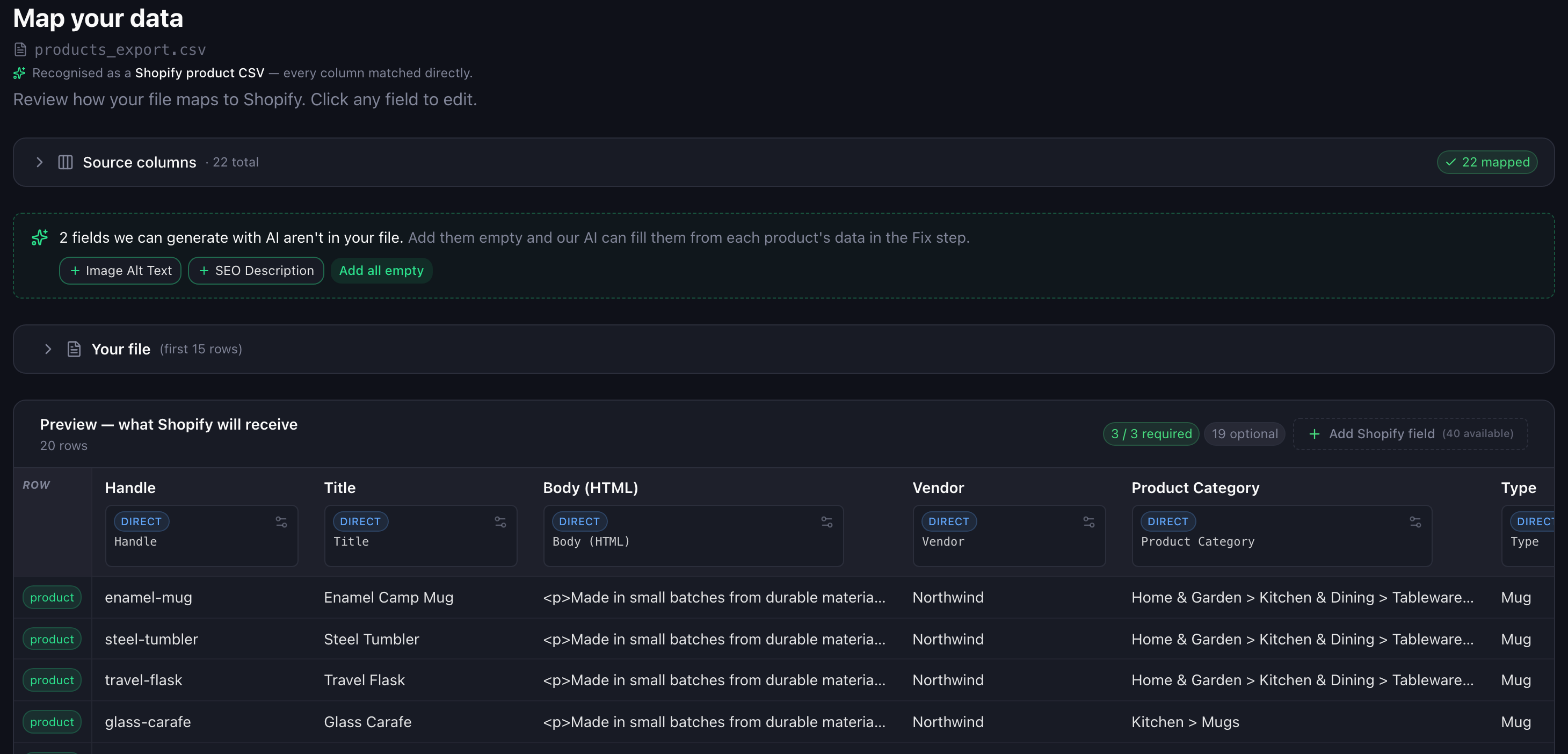
Upload the file, or paste a link to it on Google Drive, Google Sheets, Dropbox or a plain URL. A file whose columns are all Shopify’s own is recognised as a Shopify product CSV on upload: an export from a store, a filled-in copy of Shopify’s template, or the Shopify-format output of a migration tool. The test is strict on purpose. Every header has to be a Shopify column, the file needs a handle and a title column, and at least six columns have to map. A supplier sheet that borrows a few Shopify headers next to its own columns is not a Shopify CSV, and goes through the normal column mapping instead.
2. Confirm the mapping
A recognised file is mapped column for column by a fixed preset. No model guesses what Variant Inventory Policy means; it is Shopify’s column and it maps to Shopify’s field. The mapping step says so at the top and shows the preview of what Shopify will receive. The columns Portaim does not import are listed as ignored, with the reason: Google Shopping fields, variant metafields, market-specific price columns such as Price / Germany, and the Option1 Linked To columns Shopify adds to its exports. Product metafield columns in Shopify’s header format are imported as metafields. You can still change any column here, then click Confirm mapping.
3. Read the report
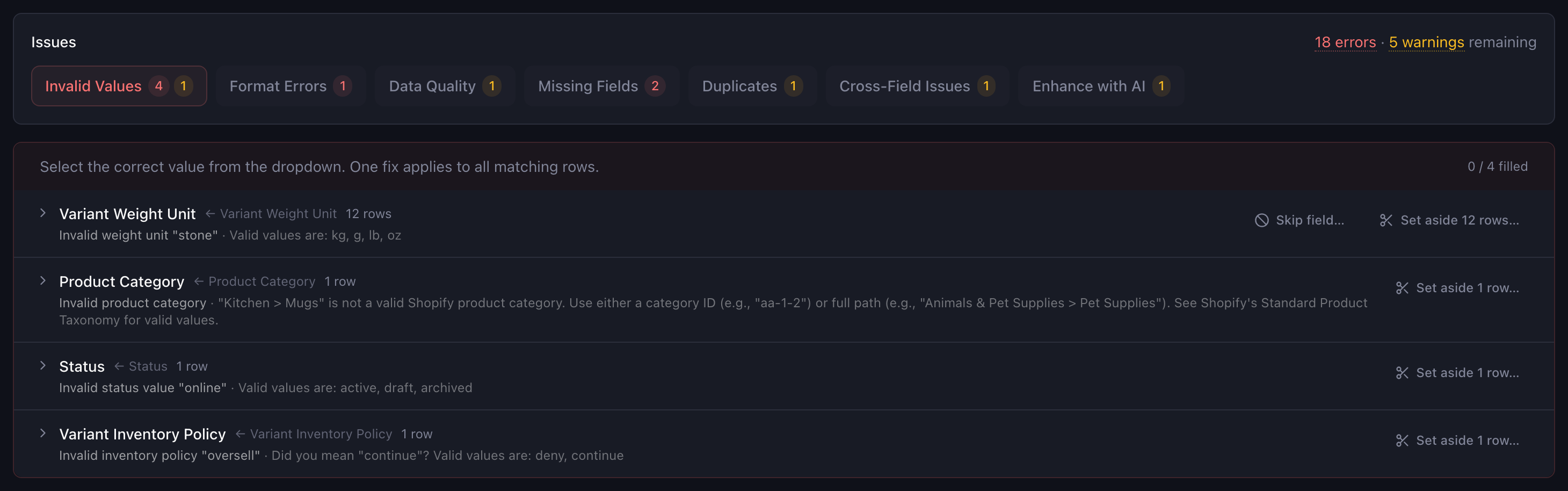
The Fix step checks every row against Shopify’s import rules and separates two kinds of finding. Errors are what Shopify’s importer would skip or reject: a status it does not know, a price it cannot read, a blank inventory policy. Warnings are what it would accept but you probably do not want: a duplicate SKU, a compare-at price below the price, a weight of zero on a product that ships. Findings are grouped by kind, Format Errors, Invalid Values, Duplicates, Missing Fields and so on, and each group names the fields it affects and the number of rows behind them. Nothing has been imported yet; this is the list you would otherwise collect from Shopify one import at a time.
4. Fix the file in one pass
Formats are fixed automatically, and the Changes table at the top of the step shows every cell that changed with its value before and after, so nothing happens out of sight: spaces trimmed, currency symbols removed, a decimal comma turned into a point, https:// added to an image link, a boolean written as enabled, on or French Excel’s VRAI turned into true. A fix you disagree with can be undone there.
Values outside one of Shopify’s fixed lists are handled by value mapping: the Fix step groups the rows that share a value and asks once. A status of live comes with active suggested, an inventory policy of oversell with continue; a value the rules do not recognise can be sent to the AI for a suggestion, or typed. A product category in your own words is matched to Shopify’s taxonomy the same way. Anything else is edited in the cell, in the Changes table or in the row.
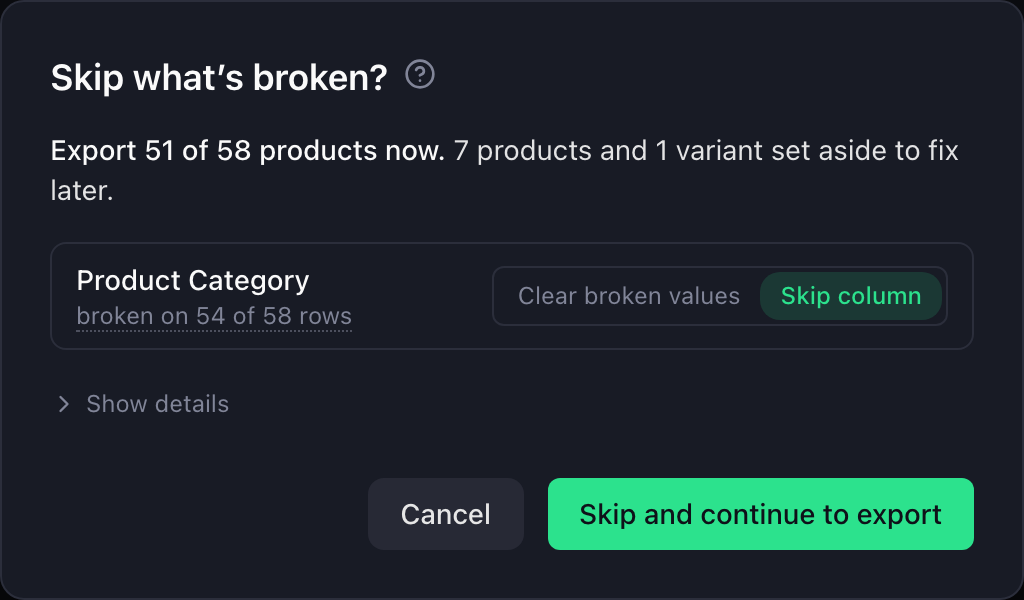
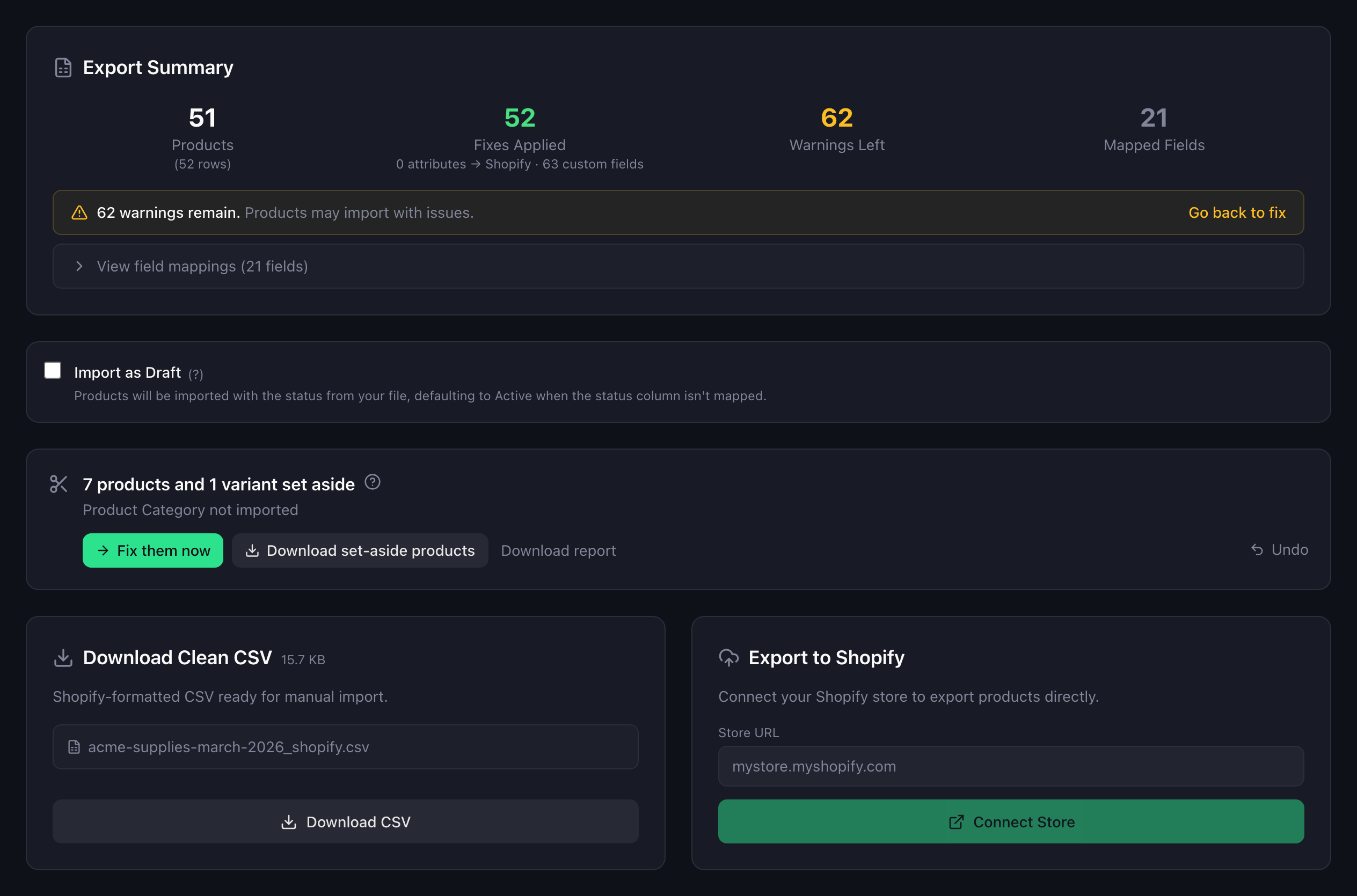
Some rows cannot be saved by a fix: a product with no title, a column that is wrong on most of its rows. Skip what’s broken, next to the Apply button, exports the products that are ready and sets the rest aside, leaving out the least it can. A broken value in an optional field is cleared; a column broken on most rows can be skipped as a whole, which is what you want for a weight unit of “stone” on every row; a product goes only when it cannot be kept. A preview lists what will be kept, cleared and set aside before anything changes, and the set-aside products come back at the Export step as a download with a report, or as a new import to fix on their own.
What is checked on a Shopify CSV
The checks are Shopify’s own rules, written down as 40-odd validations and run on every row. The ones that matter most on a file that is already in Shopify’s layout, column group by column group. The full list, with the fix each one offers, is in the validation rules reference.
| Columns | Errors (Shopify would refuse) | Warnings (Shopify accepts, you may not) |
|---|---|---|
Handle, Title | An empty handle; a handle with spaces, capitals or other characters than lowercase letters, numbers and hyphens; an empty title on the row that starts a product. | The same handle on rows with different titles: Shopify would merge them into one product and keep the first title. |
Published, Status | A yes-or-no field with anything but true or false; a status other than active, draft or archived. | — |
Option1–3 Name, Value | Two rows of one product with the same option combination; two option columns with the same name; a variant row with no option value, or a product with no option name on its first row. | An option name spelled differently from row to row of one product; an option value with no name; a name with no value. |
Variant Inventory Policy, Tracker, Fulfillment Service, Qty | A policy other than deny or continue, or a blank one while the column is in the file; a tracker Shopify does not know, or Shipwire or Amazon named without the matching fulfillment service; a blank or unknown fulfillment service; a quantity that is not a whole number, such as 12.00 from a spreadsheet. | — |
Variant Price, Compare At Price, Cost per item | An empty price; a price, compare-at or cost that is not a plain number: a currency symbol, a decimal comma, thousands separators, letters. | A compare-at price at or below the price; a price below the cost. |
Variant Grams, Variant Weight Unit | A weight that carries a unit or a decimal comma, or is not a number; a unit other than kg, g, lb or oz. | A weight of zero on a product that requires shipping. |
Image Src, Image Position, Image Alt Text | A link without https://, malformed, or with characters that need encoding; a position that is not a whole number of 1 or more. | Alt text longer than 125 characters. |
Product Category | A category that is not in Shopify’s Standard Product Taxonomy, as an ID or a full path; the nearest category is offered. | — |
Variant SKU, Variant Barcode | — | The same SKU or the same barcode on more than one row. |
Two things a Shopify export carries are handled before the rules run. Unit price columns are kept and checked as a set of four. Product metafield columns become metafield fields, and their values are checked against the attribute’s list where Shopify has one, so a colour Shopify does not know is caught here rather than written as a stray entry.
Two things are not checked, because they are not in the file. Whether a handle already exists in your store: the CSV import decides that with its overwrite option, and the direct export’s Create new products mode reports such rows as failed. And whether an image link actually downloads: the shape of the link is checked, not the file behind it, so a well-formed link to a missing image still fails at Shopify.
Export: the clean CSV, or straight to the store
When the report is clean, or everything that is not clean has been set aside, you have two ways out:
- Download the CSV. A file in Shopify’s own column layout, for Products, then Import, in your admin. The Export step shows its estimated size against Shopify’s 15 MB import limit. In Shopify’s import dialog, tick Overwrite products with matching handles only if the file is meant to update products already in the store; otherwise Shopify ignores rows whose handle exists.
- Export to Shopify. The products are written into your connected store through Shopify’s API. Create new products leaves existing handles alone and reports them. Smart upsert (by Handle) updates the fields you mapped on products matched by handle and creates the rest, which is the mode for an export of your own store that you cleaned up. Mapped list fields, such as tags, are replaced on the matched products, so check the mapping before an upsert.
Either way, Import as Draft keeps every product unpublished until you have looked at it in Shopify. Connecting a store is optional: the CSV download needs no connection at all.
The next file
A Shopify-format file needs no saved mapping: the preset recognises it every time, so the second export from the same source goes from upload to report in one click. What changes between runs is the report, which is the point. A file that was clean last month and fails this month tells you what changed in the source before Shopify does.
This is especially useful when:
- a migration tool produces the file and you want to know what it got wrong before the store does;
- several people edit a shared spreadsheet in Shopify’s layout and an
18,50or a localised ExcelVRAIslips in; - you copy products between two stores you run and want duplicate handles and SKUs caught before the second store has them.
When this page is for you
Portaim is a good fit if you:
- have a product CSV in Shopify’s layout that was edited in a spreadsheet, merged from two stores, or produced by a migration tool or a filled-in template, and Shopify’s importer keeps rejecting parts of it;
- want the full list of problems before anything is created in the store, errors and warnings alike;
- would rather fix a status or a policy once for all the rows that share it than cell by cell;
- need the rows Shopify would skip kept somewhere, with the reason, instead of silently dropped.
Portaim may not be the right fit if:
- the file is an export nobody has touched, going back into its own store: it imports as it came out, and Shopify’s importer is the shortest path;
- you need to bulk-delete products or change availability on other sales channels, which neither Shopify’s CSV import nor Portaim does;
- you want to update only one or two fields on existing products from a narrow file, which Portaim does not yet do on its own: a mapped field overwrites, an unmapped single-value field is left alone.
Why not import the CSV into Shopify and read the errors?
Because the errors arrive after the import, not before it. Shopify’s CSV import creates the products that pass and reports the rest, so a file with a few mistakes leaves the store half updated, and a file imported with the overwrite option changes existing products before you have seen the report. It also says nothing about the things it accepts: duplicate SKUs, a compare-at price below the price, a barcode a spreadsheet turned into scientific notation, a category it could not match.
Portaim sits between the file and the store. The mapping is the preset, the checks are Shopify’s rules, the fixes are applied once per value and shown before they are kept, and nothing reaches the store until you export.
| Status | Variant Price | Published | Image Src | |
|---|---|---|---|---|
| 2 | live | 18,50 | WAHR | cdn.example.test/jug.jpg |
| 3 | active | 12.00 | true | https://cdn.example.test/bowl.jpg |
| 4 | draft | 9,00 | true |
| Status | Variant Price | Published | Image Src | |
|---|---|---|---|---|
| 2 | active | 18.50 | true | https://cdn.example.test/jug.jpg |
| 3 | active | 12.00 | true | https://cdn.example.test/bowl.jpg |
| 4 | draft | 9.00 | true |
The supplier file guide covers the same flow for a file that is not in Shopify’s layout, where the column mapping comes first. For a WooCommerce export, the migration guide explains the conversion that runs before this check. To see the check on a file with the mistakes above, open the home page, click Try it now and pick the sample called Shopify export that needs cleanup.
Frequently asked questions
Does Portaim change the columns of my Shopify CSV?
No. A file in Shopify's column layout is mapped column for column by a fixed preset, and the CSV you download uses Shopify's own column names again. Columns Portaim does not import, such as Google Shopping fields, variant metafields and market-specific prices, are listed as ignored on the mapping step and are not in the download.
Does this work with an export from another Shopify store, or from a migration tool?
Yes, as long as every column header is one of Shopify's. That covers a Shopify export, a filled-in copy of Shopify's template and the Shopify-format output of most tools. A file that mixes a tool's own columns with Shopify's goes through the normal column mapping instead, which still works; it just takes a look at the suggested mapping before confirming.
Will my existing products be overwritten?
Not without your say-so. With the CSV download, Shopify's importer only replaces existing products when you tick Overwrite products with matching handles in its import dialog. With the direct export, Create new products leaves existing handles alone and reports them, and Smart upsert updates the fields you mapped on products matched by handle.
What happens to the rows Shopify would skip?
They are reported in the Fix step before anything is imported, with the reason. Most are fixed there. A row that cannot be saved, such as a product with no title, is set aside by Skip what's broken, and the set-aside products come back at the Export step as a download with a report, or as a new import to fix separately.
What about metafield columns?
Product metafield columns in Shopify's header format, such as Color (product.metafields.shopify.color-pattern), are imported as metafields. Variant metafield columns are not imported, and neither are metafields in namespaces owned by another app, which Portaim cannot write.
Does Portaim check whether a handle already exists in my store?
No. The checks run on the file alone. With the CSV download, Shopify's importer ignores rows whose handle exists unless you tick Overwrite products with matching handles. With the direct export, Create new products reports those rows as failed and Smart upsert updates them.
Does Portaim check that the image links work?
It checks the link's shape, not the file behind it. A link without https://, a malformed one or one with characters that need encoding is an error and is fixed; an http:// link or one that does not look like an image file is a warning. Whether the image downloads is only known when Shopify fetches it.
Can I try this without an account?
Yes. Click Try it now on the home page and pick the sample called Shopify export that needs cleanup: a Shopify product CSV with the mistakes Shopify's importer refuses. You can map, fix and download the cleaned file. Exporting to a store needs a free account.
Is there a file size limit?
An upload can be up to 50 MB, 100,000 rows and 100 columns. The free plan processes 1,500 rows a month. For the CSV download, the Export step shows the estimated file size against Shopify's own 15 MB import limit.
Related use cases
Import Supplier CSVs into Shopify Without Manual Cleanup
Import supplier CSV, XLSX, and XLS files into Shopify without spreadsheet cleanup — AI column mapping, 40+ validation rules, auto-fix for common issues, and export as a Shopify-ready CSV or direct API push.
Migrate WooCommerce Products to Shopify from a CSV Export
Migrate products from WooCommerce to Shopify by uploading its built-in CSV export: variations become variants, attributes become options, categories become tags.
Find out what Shopify would refuse before you upload
Upload the Shopify product CSV as it is. Portaim maps it column for column, reports every row Shopify's importer would skip or reject, fixes the formats in one pass and gives you a clean file or a direct export.